It begins here
Getting Started with DuPree X
We are excited to join your team. Please use this guide to connect your accounts.
Account setup
To complete the setup process, we require access to your:
Facebook business page
Facebook ad account
Instagram business profile
Spotify for Artists account
Configure Your Facebook Page
Confirm your Facebook Business Page is connected to Meta Business Portfolio and ready to share.Questions? Contact us.
Navigate to your Business Manager and select your account from the top left.
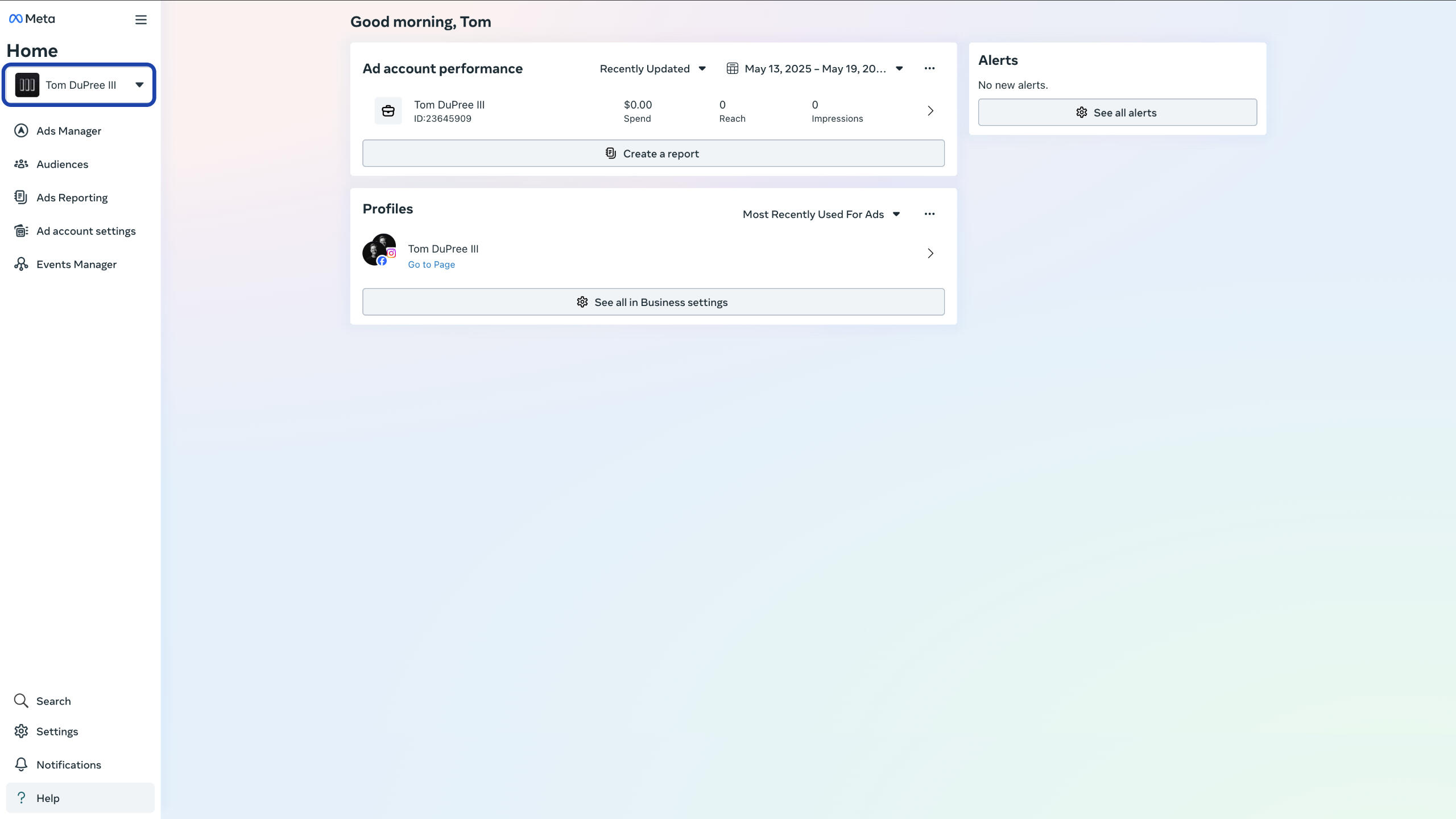
Ensure your Business Manager account is selected from the dropdown. It will appear above the fold.
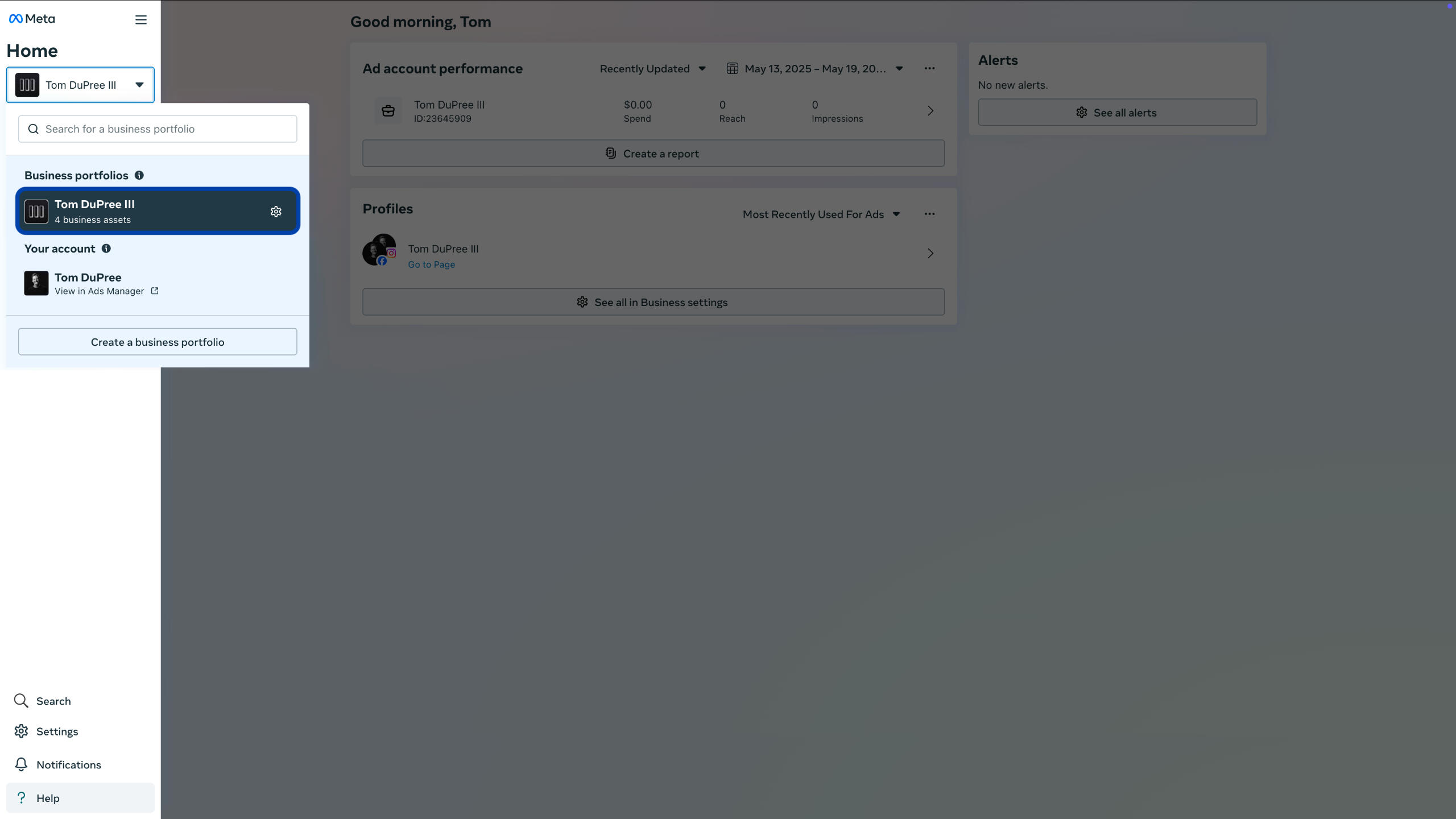
Navigate to Settings by clicking the gear icon to the right of your name or in the bottom left corner of the screen.
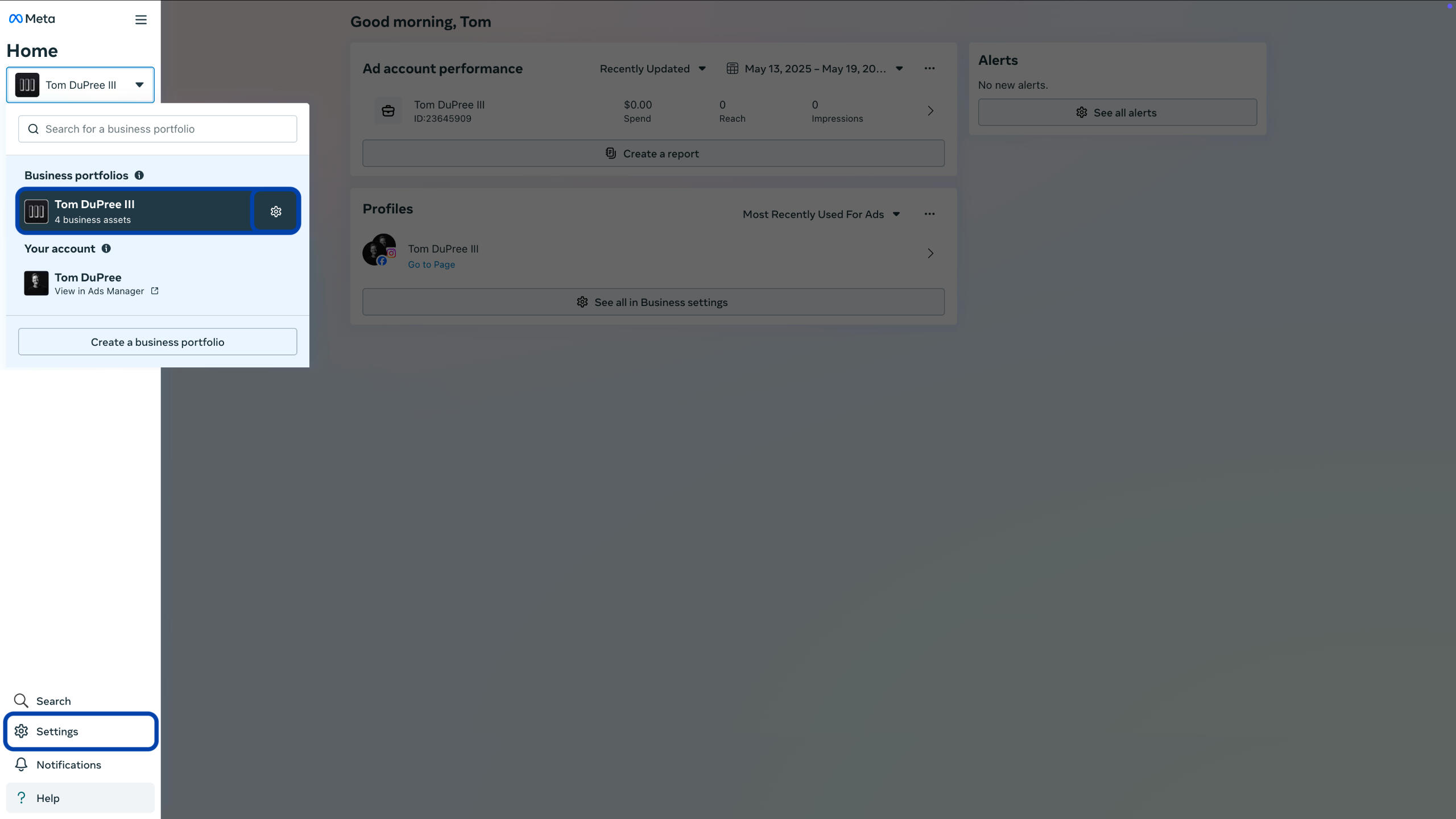
In the Settings menu, select “Accounts” and “Pages” from the left panel. If you see your page, then it is correctly connected to your Business Portfolio and ready to share.
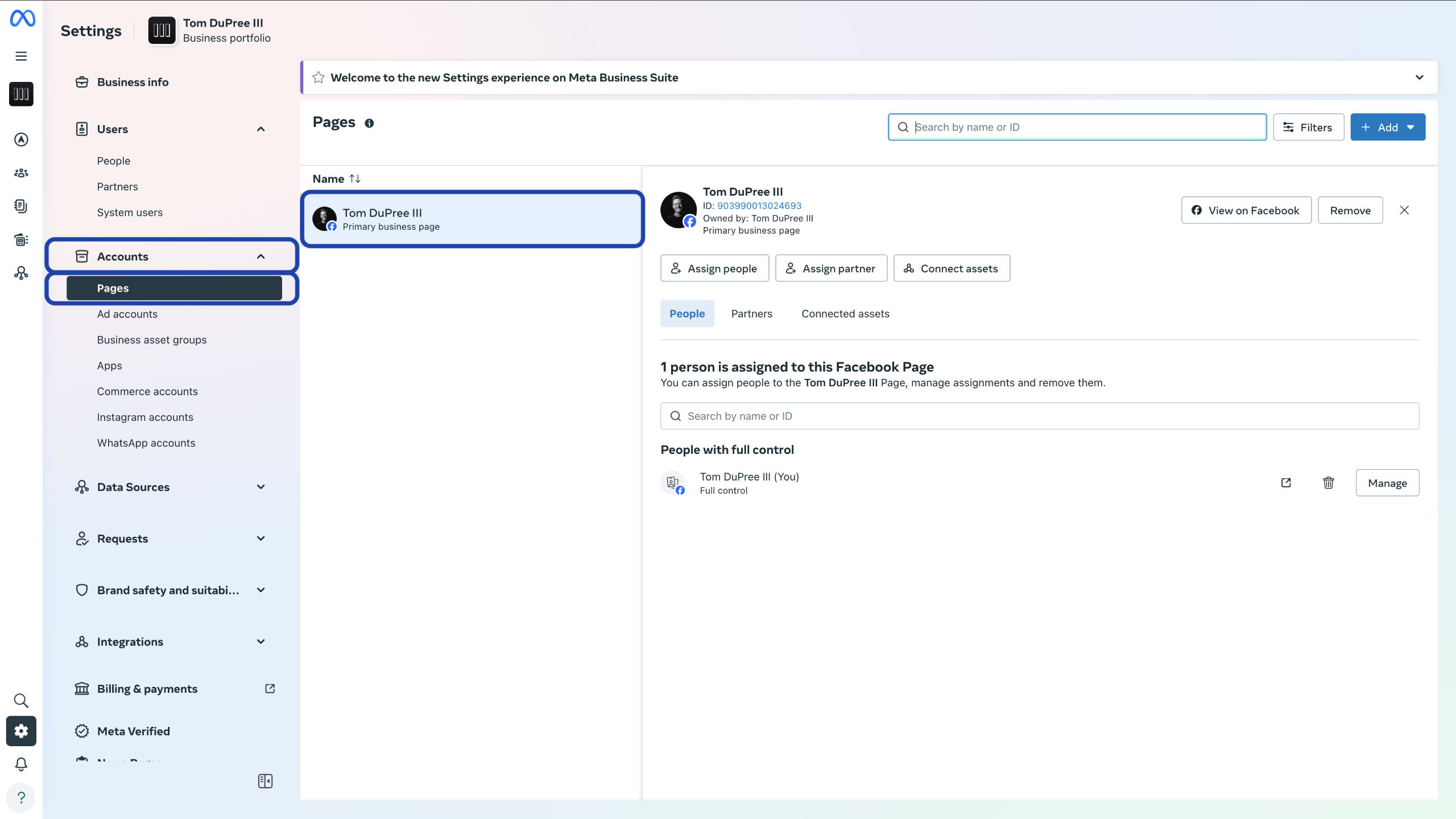
If you do not see your page, select the blue “Add” button from the top right of the screen.
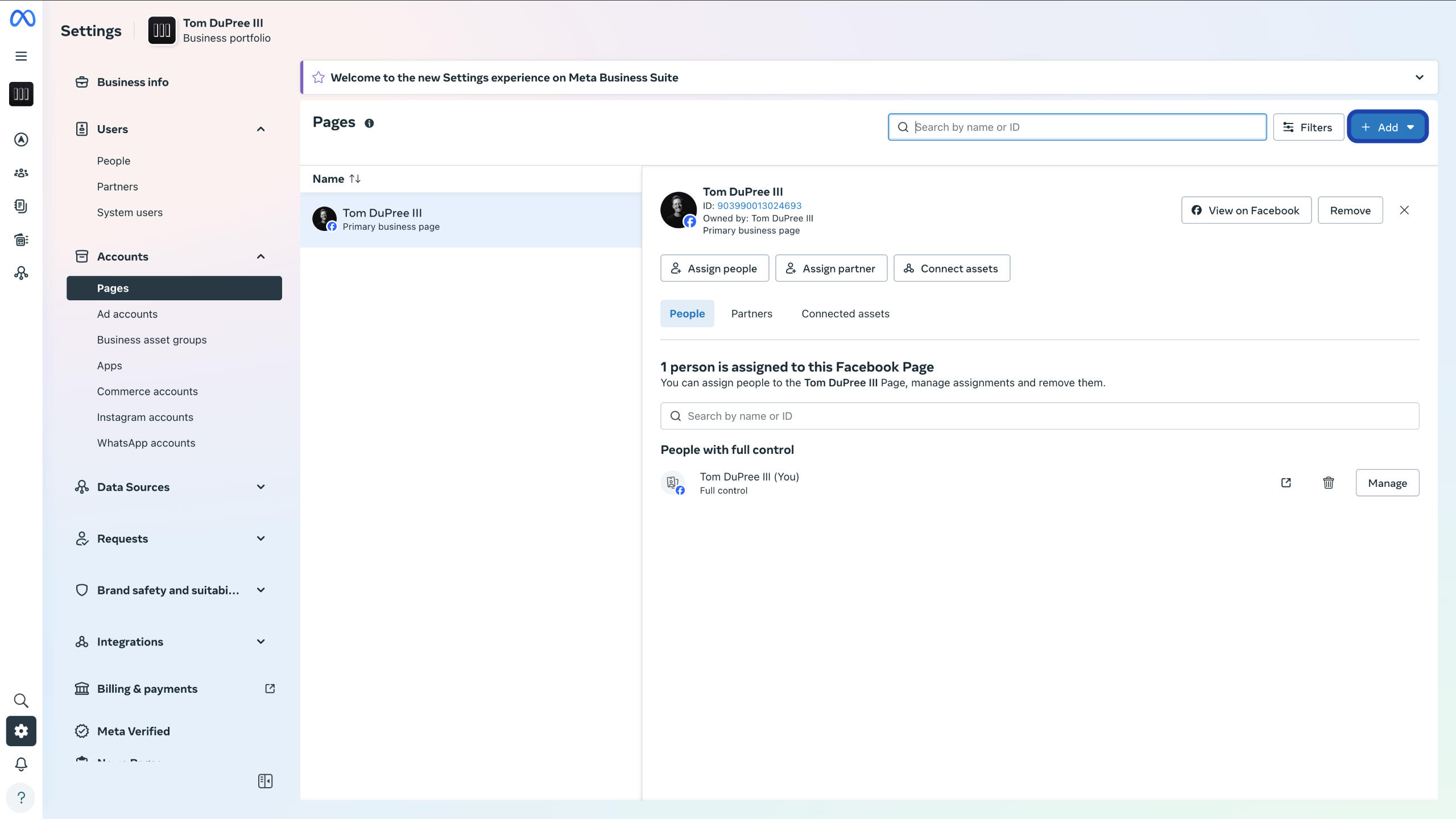
Select “Add an existing Facebook Page”.
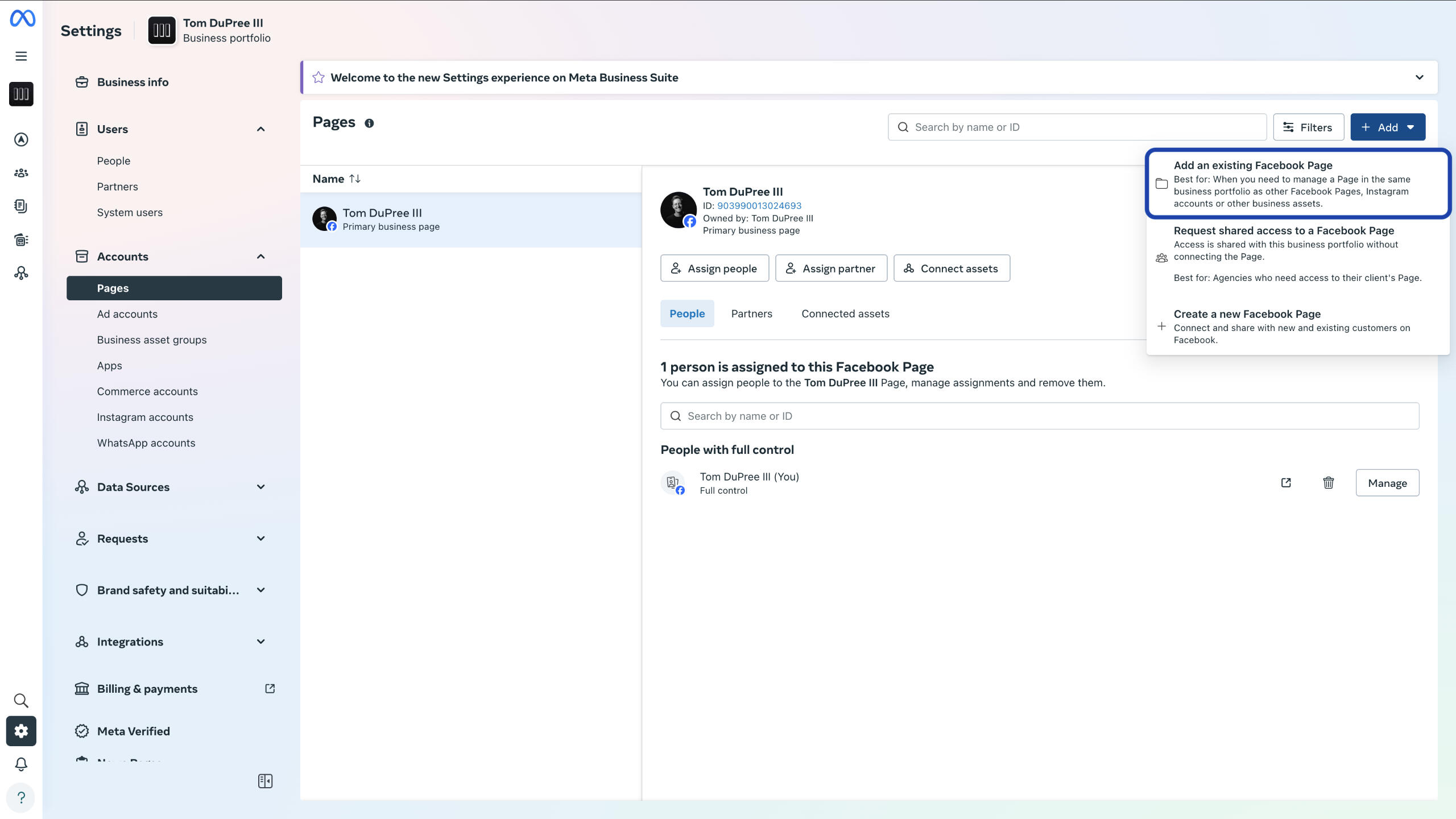
Type the name of your page into the dialog box, select it from the dropdown, then follow the instructions to complete the process.
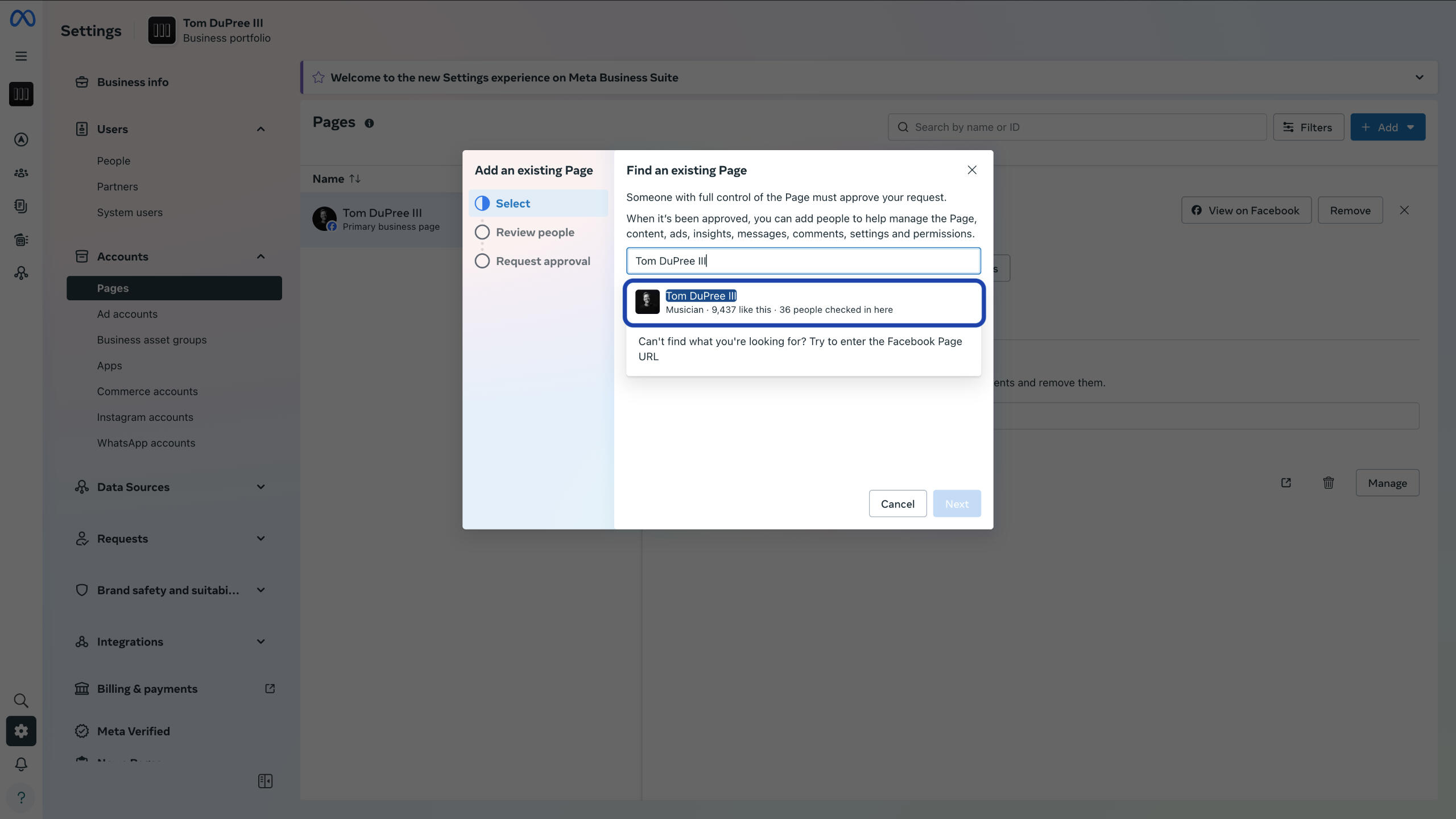
Once your page is connected to your Meta Business Portfolio, it is ready to share.
Configure Your Ad Account
Confirm your ad account is connected to Meta Business Portfolio and ready to share.Questions? Contact us.
Select “Accounts” and “Ad accounts” from the left panel. If you see your account here, then it is already connected to your Business Portfolio.
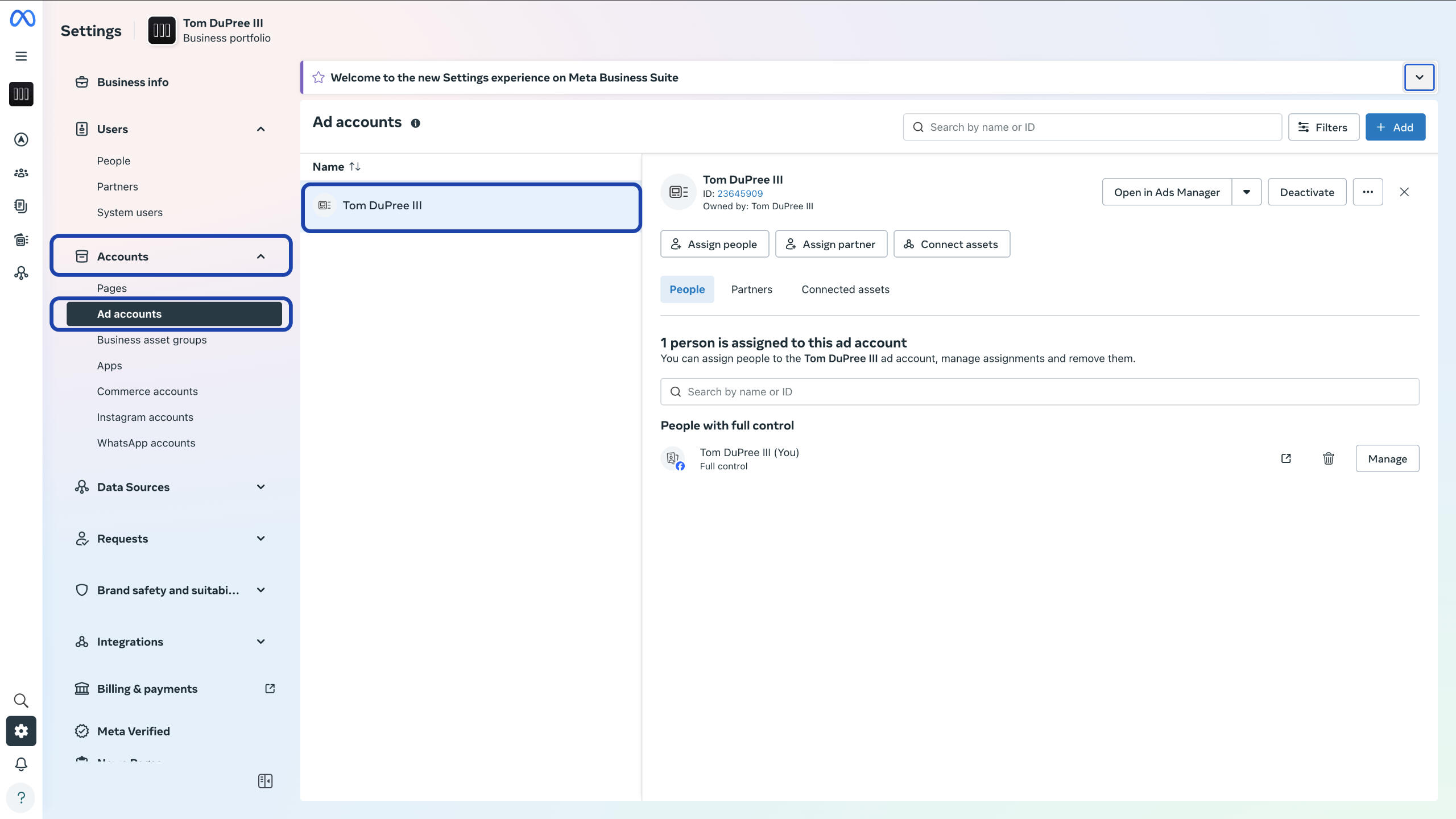
If you do not see your ad account, select the blue “Add” button from the top right.
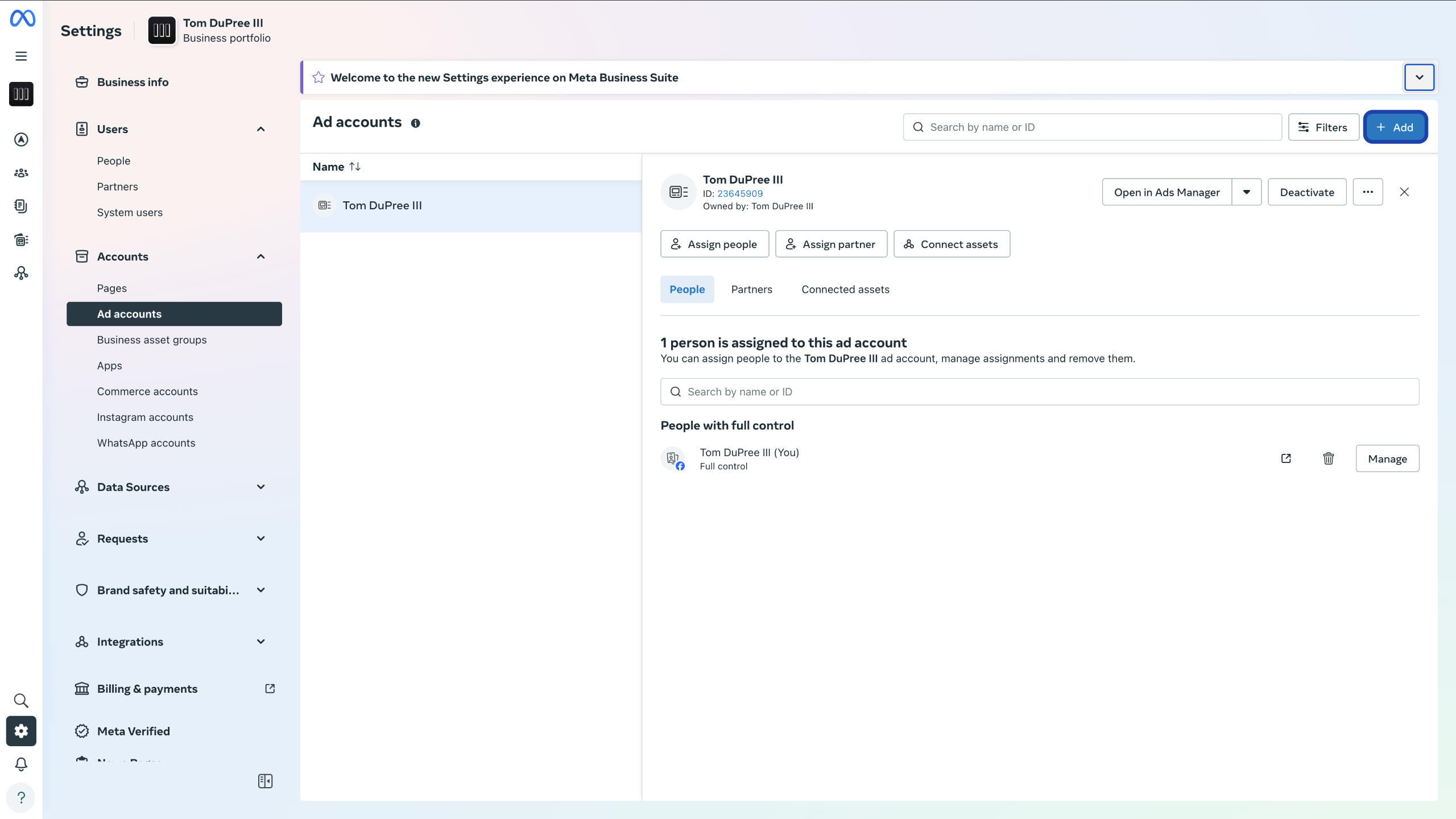
If you don't have an ad account, select "Create a new ad account" from the dropdown and follow the steps to create a new ad account. If you have an existing ad account, select "Add an ad account" and complete the steps to add your existing ad account.
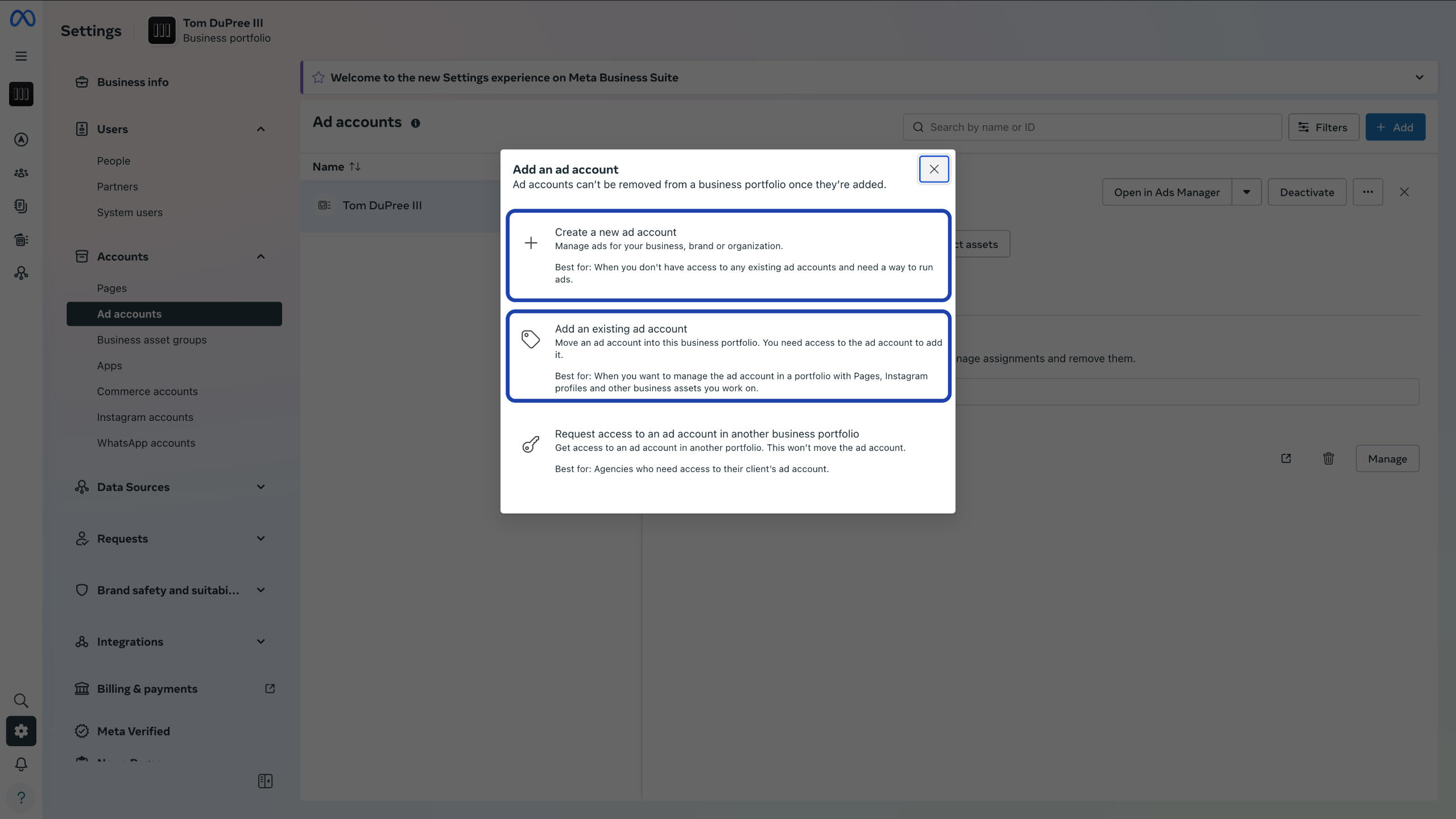
To connect an existing account, you will need to copy and paste your ad account ID into the field.
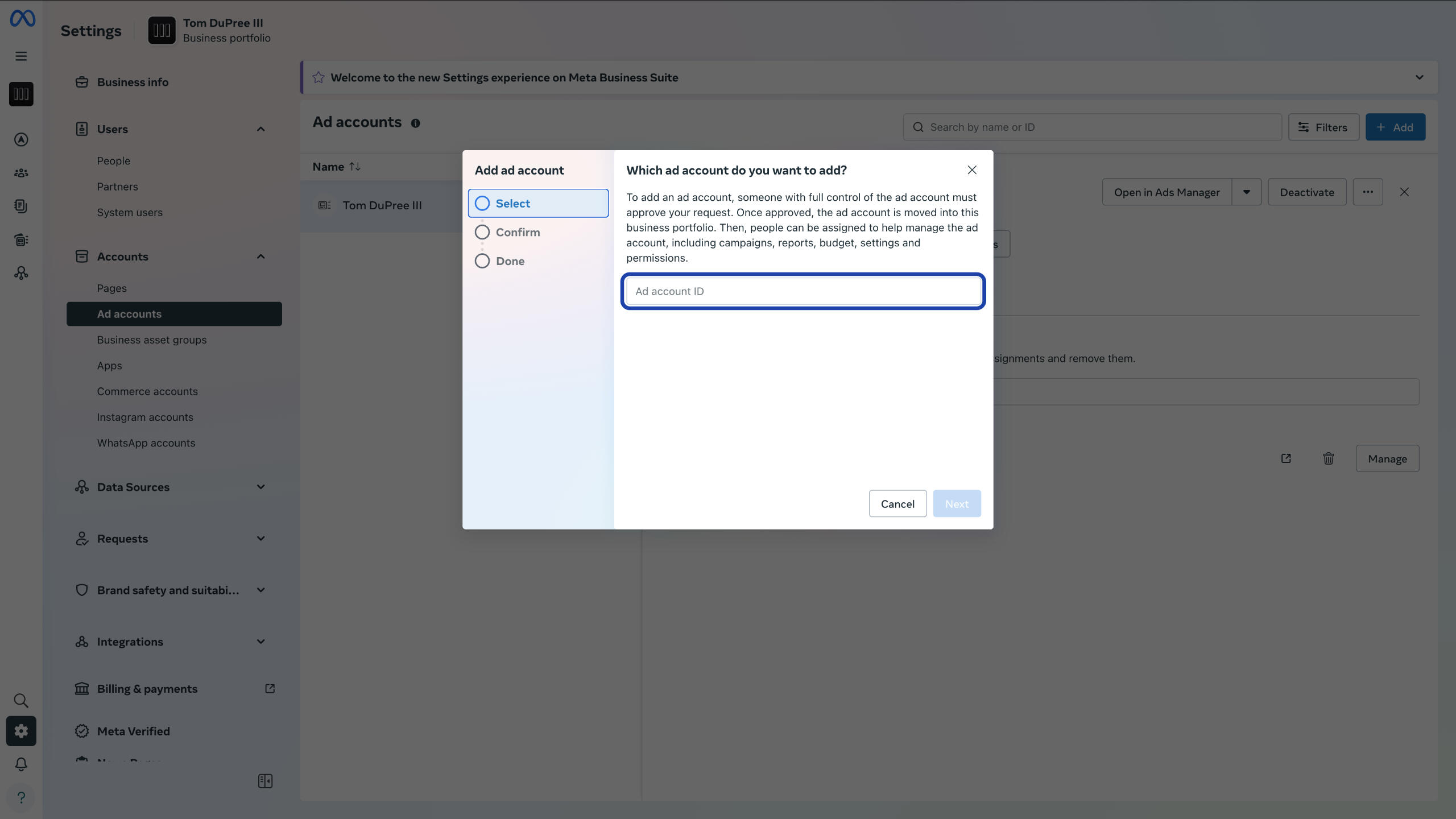
Your ad account ID can be found inside the ads manager. Copy this ID and paste it into the field.
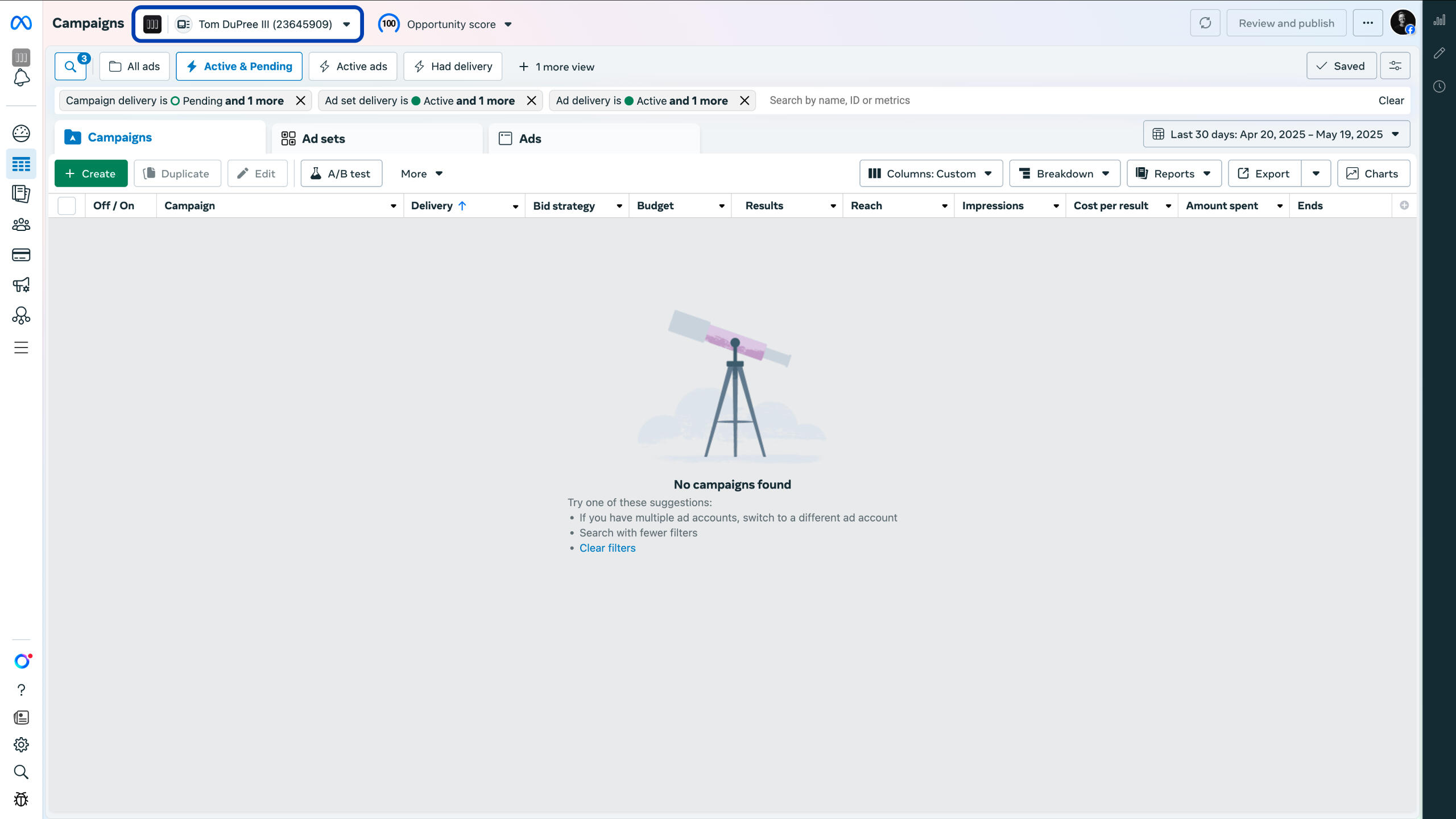
Once you have pasted your ad account ID, select "Add ad account" to connect your ad account to your Business Portfolio. Once your ad account is connected, it is ready to share.
Configure Your Instagram Account
Confirm your Instagram account is connected to Meta Business Portfolio and ready to share.Questions? Contact us.
Select “Accounts” and “Instagram accounts” from the left panel. If you see your account here, then it is already connected to your Business Portfolio.
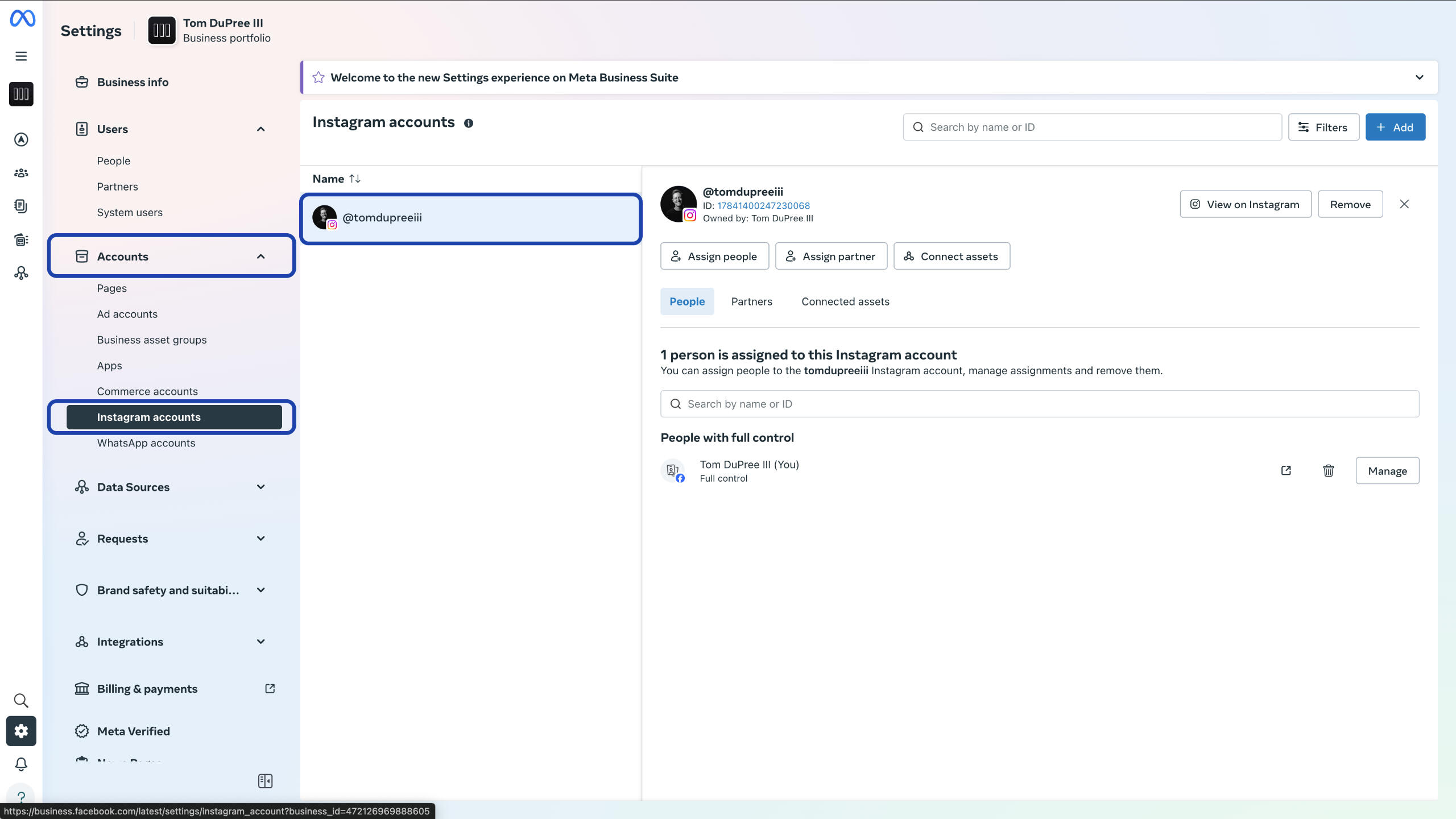
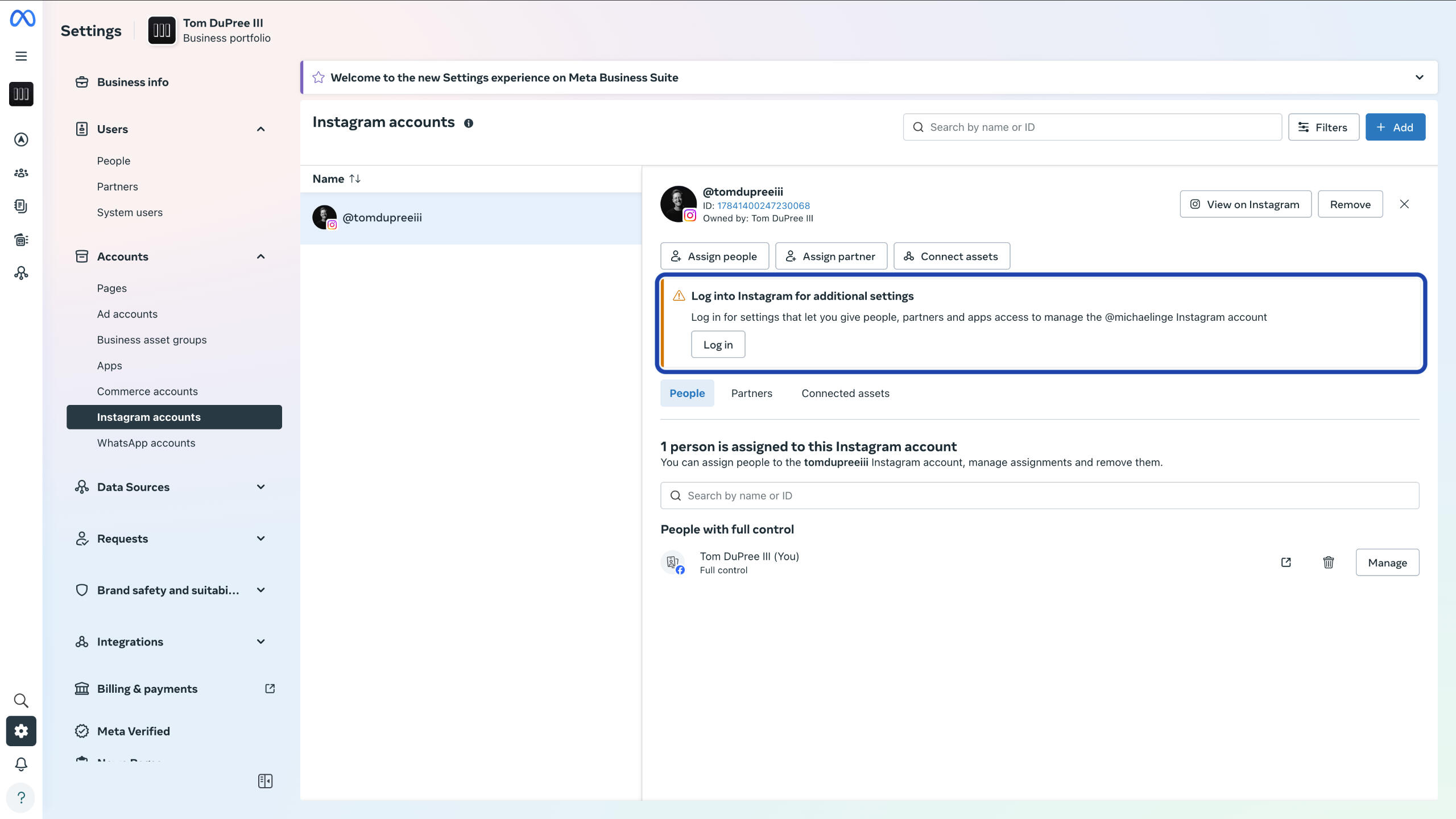
Note that even if your account is connected, if you see a yellow warning, you will need to reconnect your account to enable sharing. Simply click the “Log In” button and follow the instructions to reconnect your account.
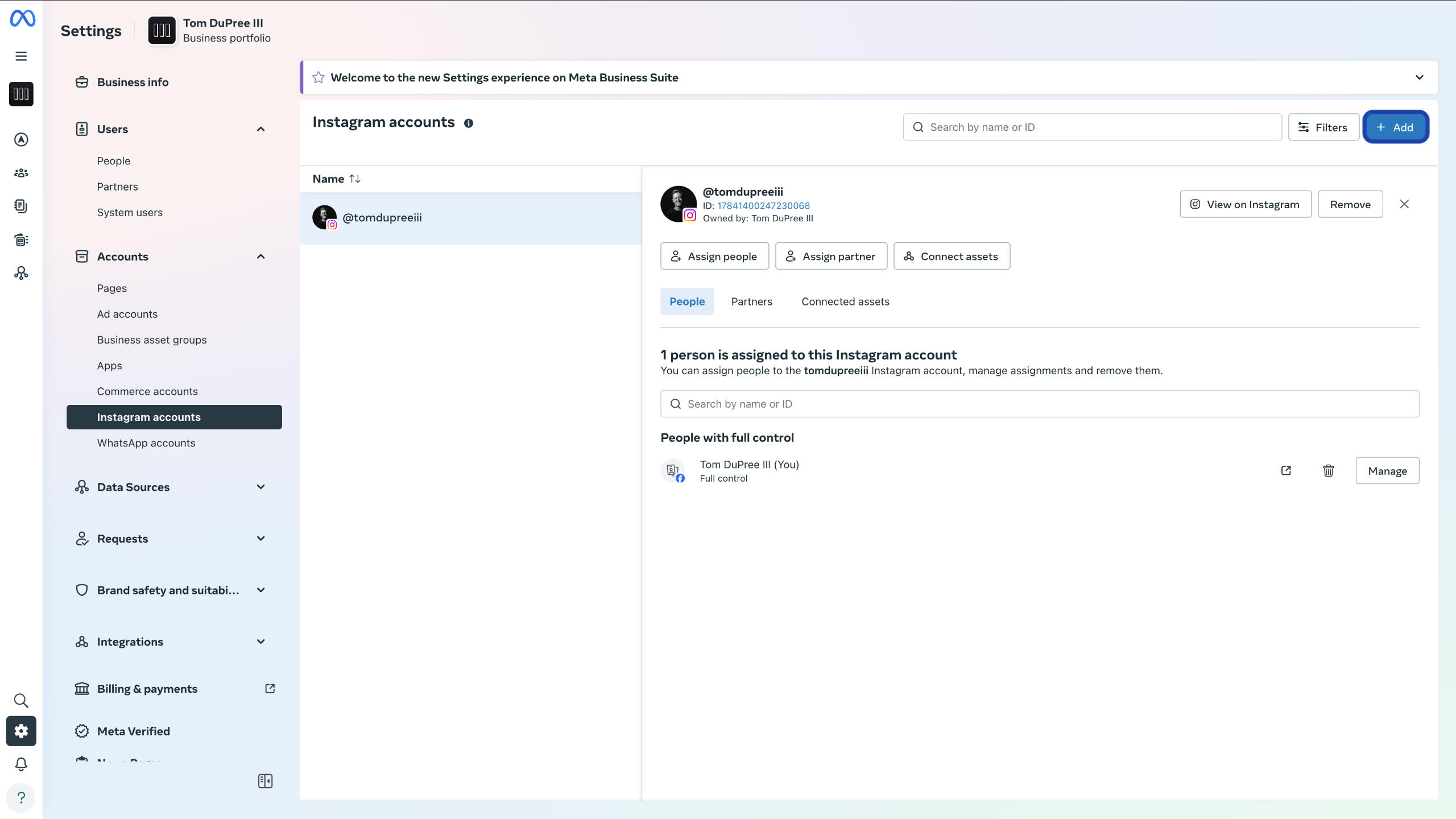
If you do not see your Instagram account, select the blue “Add” button from the top right.
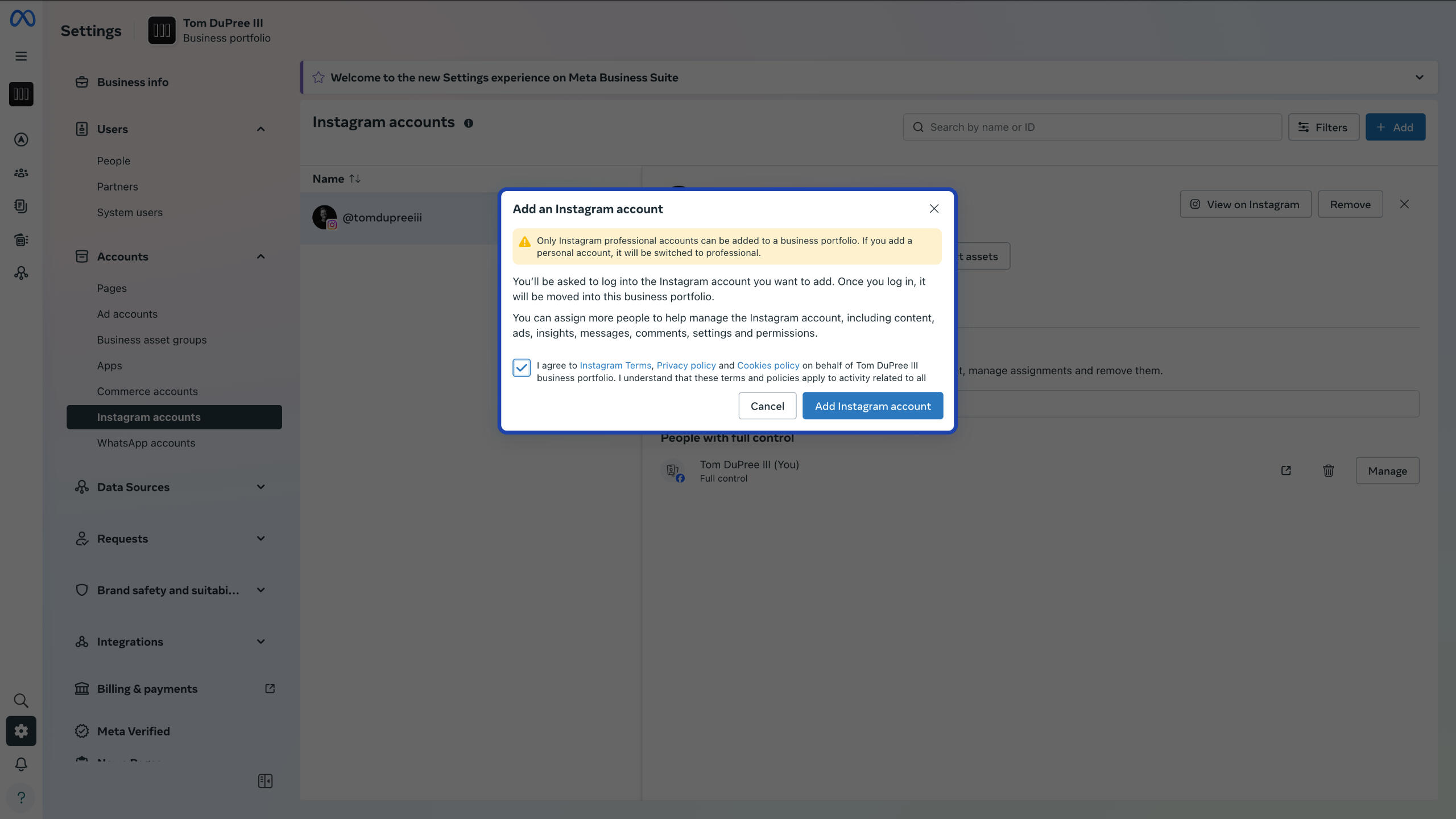
Select “Add an Instagram Account”, then input your information to log in and connect your account to your Meta Business Portfolio.
Once your Instagram account is connected, it is ready to share.
Share Your Meta Assets
Give us access to your assets using Meta Business Portfolio.Questions? Contact us.
Navigate to the Partners tab in your Business Portfolio settings and select the blue “Add” button from the top right of the screen.
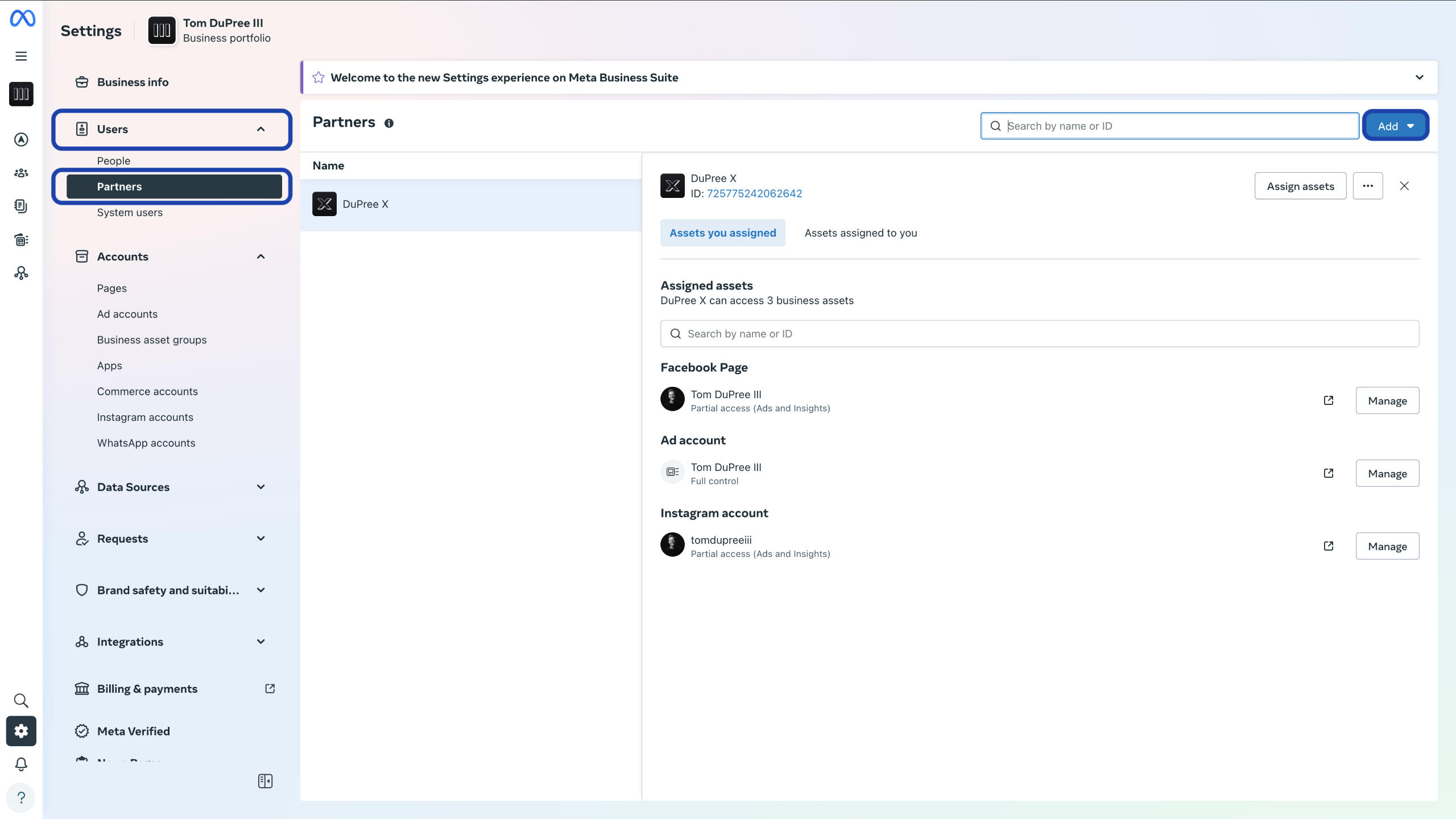
Select “Give a partner access to your assets".
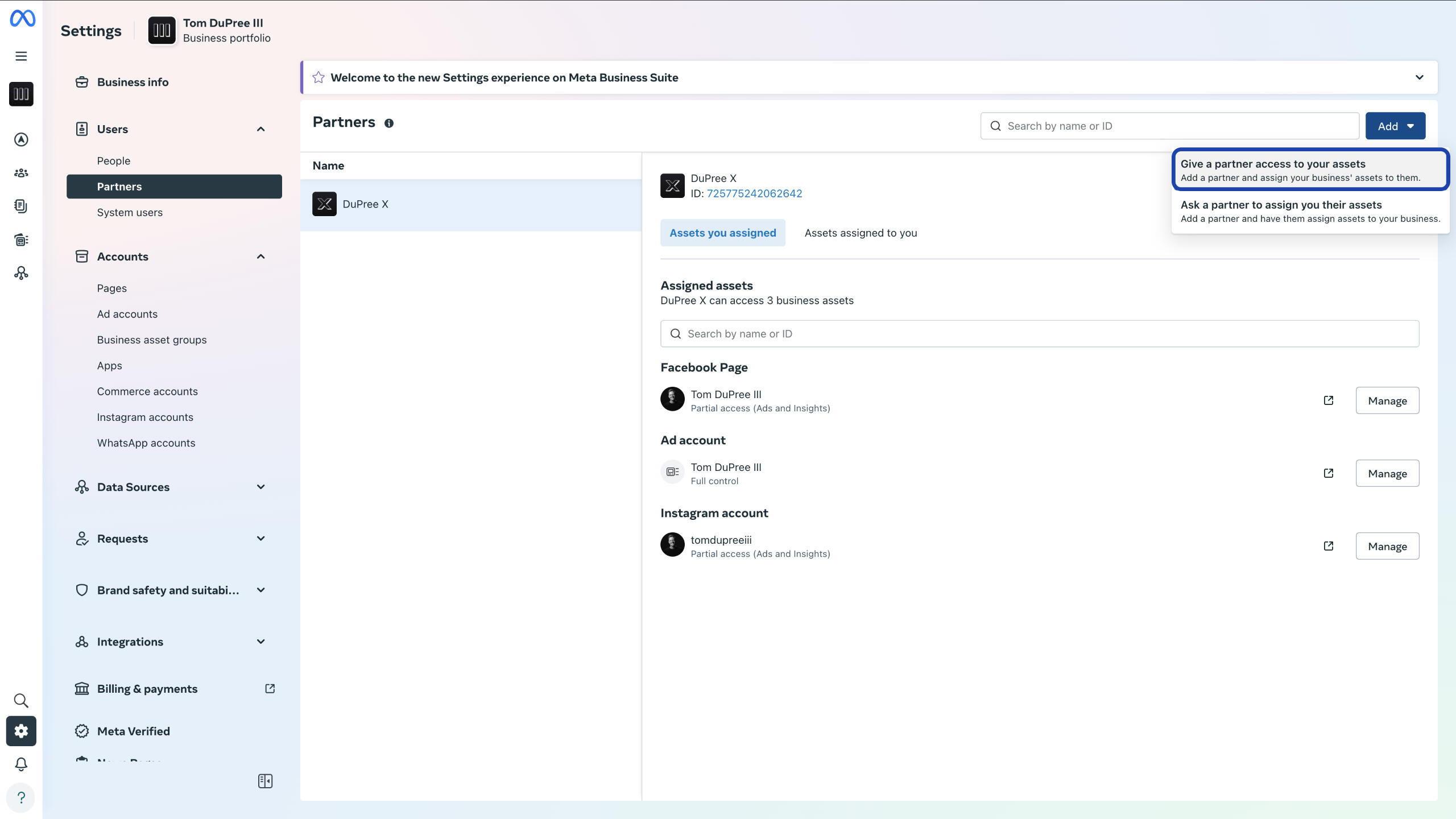
Paste the DuPree X Business Manager ID into the field—725775242062642—and select “Next”.
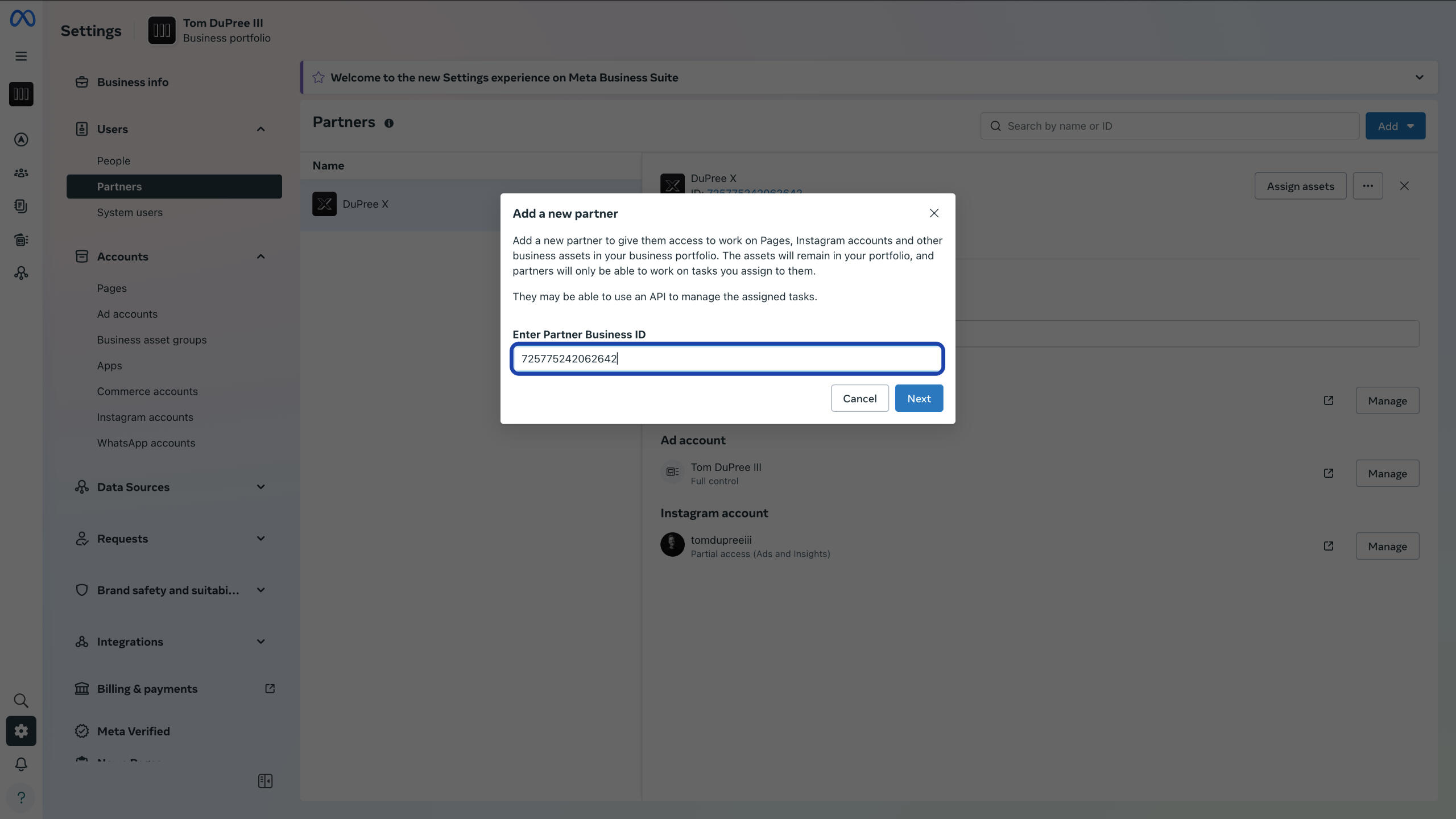
Select Pages from the left panel, find and select your Facebook Business Page from the center panel, then toggle on Ads and Insights in the right panel.
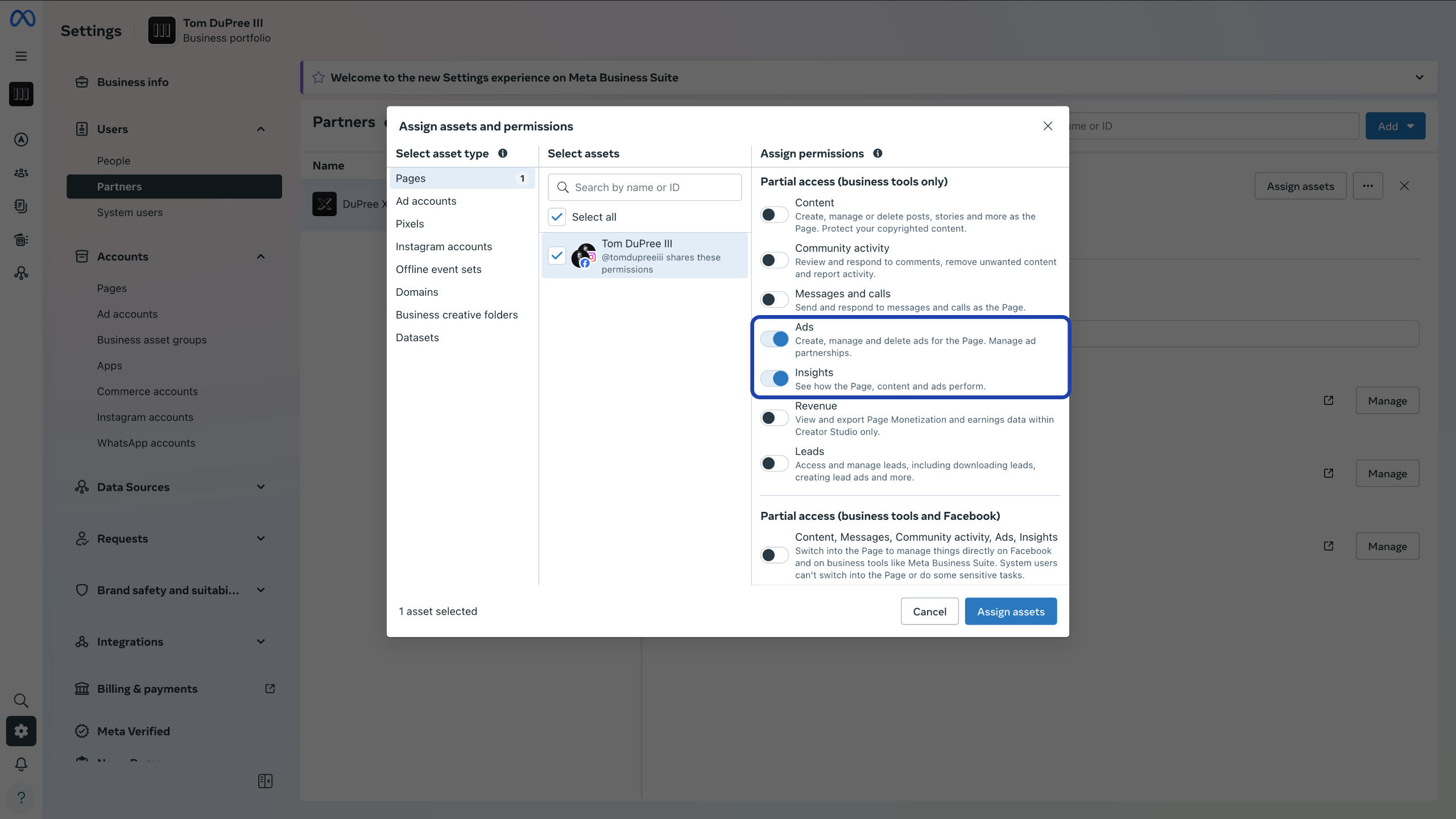
Next, select Ad accounts from the left panel, find and select your ad account, then toggle on Manage campaigns, View performance, and Manage Creative Hub mockups in the right panel.
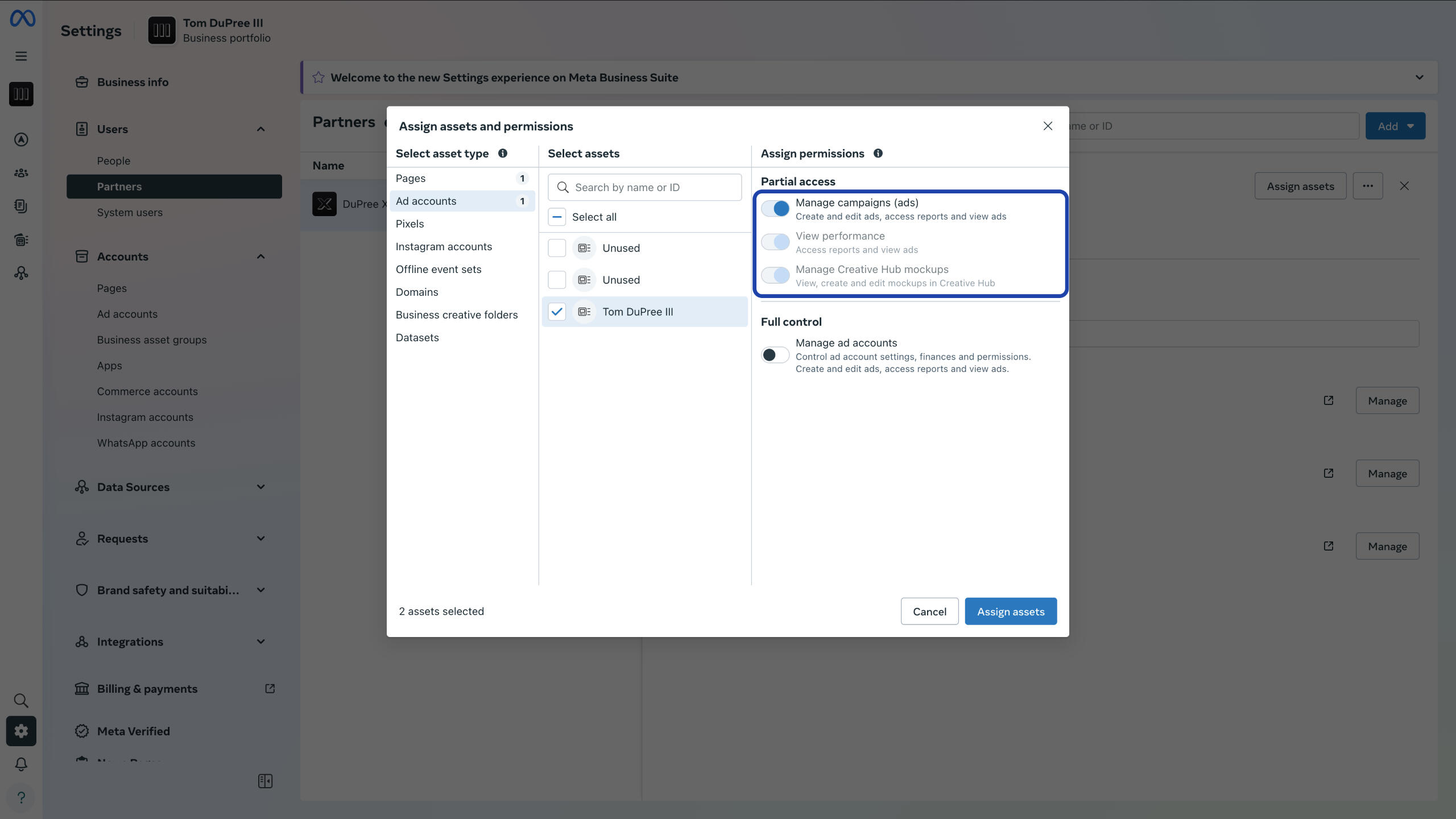
Finally, select Instagram accounts from the left panel, find and select your Instagram account from the center panel, then toggle on Ads and Insights in the right panel.
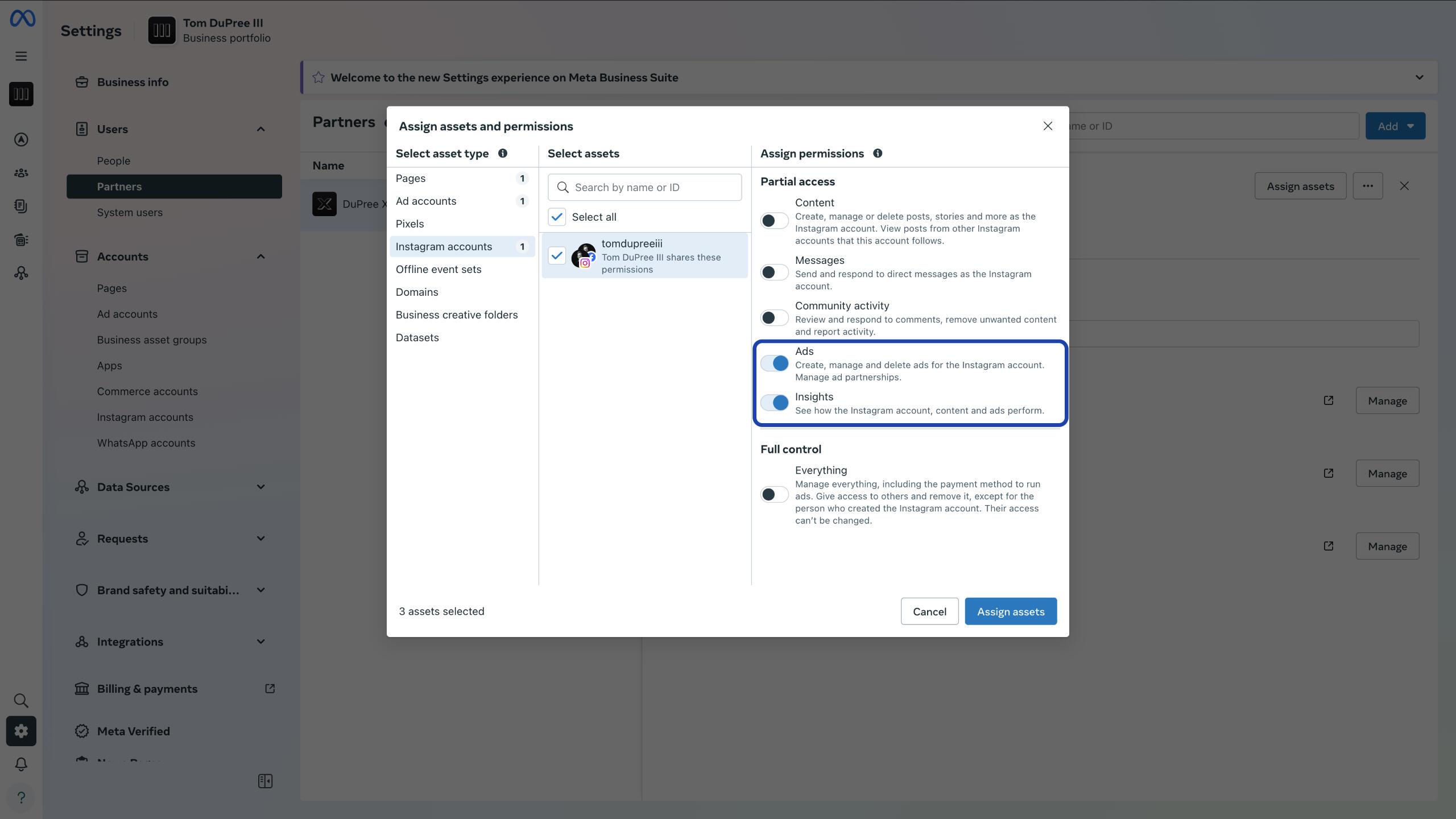
Click “Save changes” to complete the process.
Confirm your Meta connection
Send us a note to confirm access to your Meta assets.Questions? Contact us.
Navigate to "Business info" at the bottom of the left column in Business Settings.
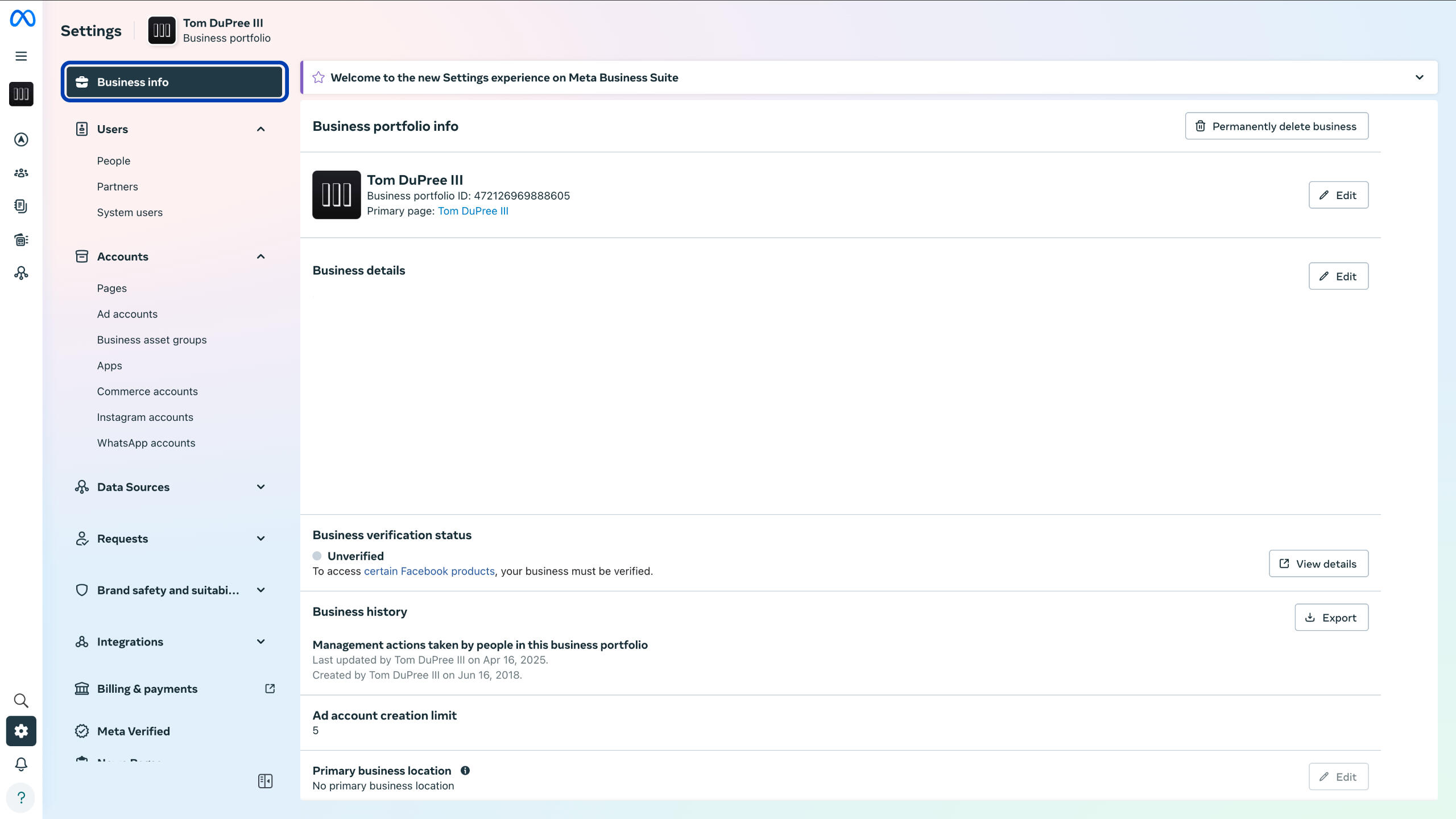
Highlight and copy your Business Portfolio ID at the top of the page.
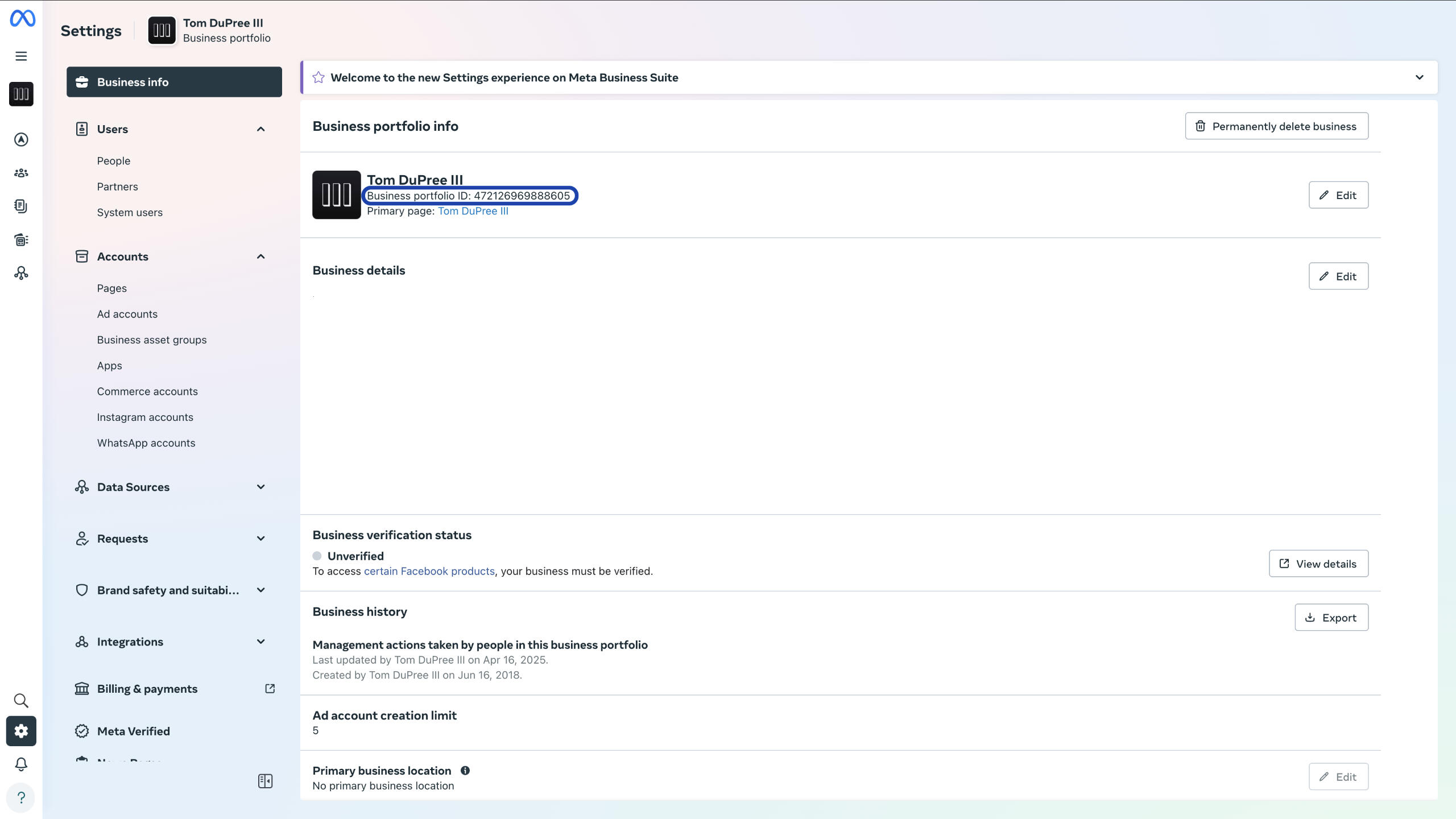
Complete the form and paste your Business Portfolio ID into the appropriate field below to submit your Meta connection for review.
Connect Spotify for Artists
Add DuPree X to your team inside Spotify for Artists.Questions? Contact us.
Visit Spotify for Artists and select the icon in the top right of the screen.
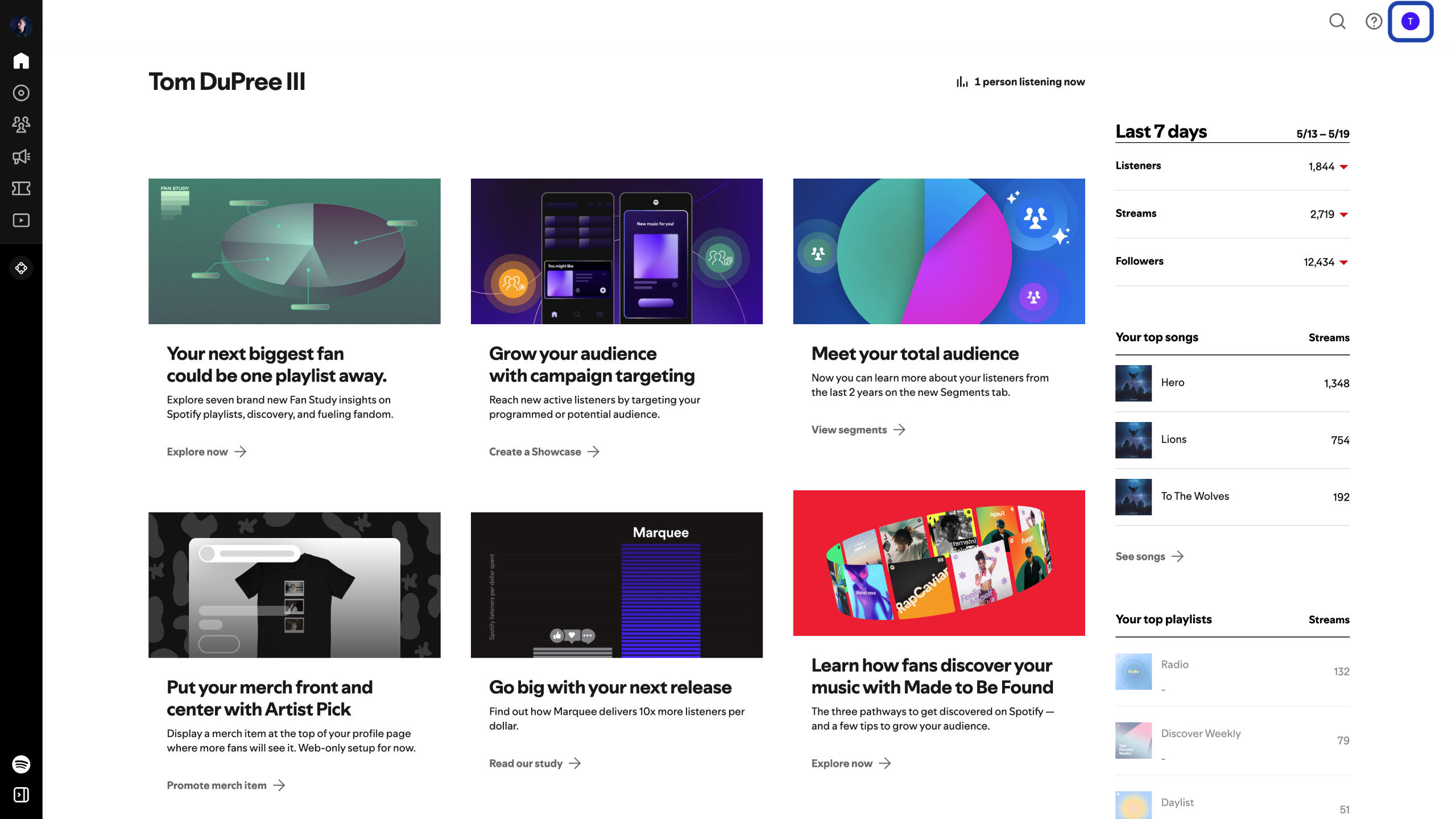
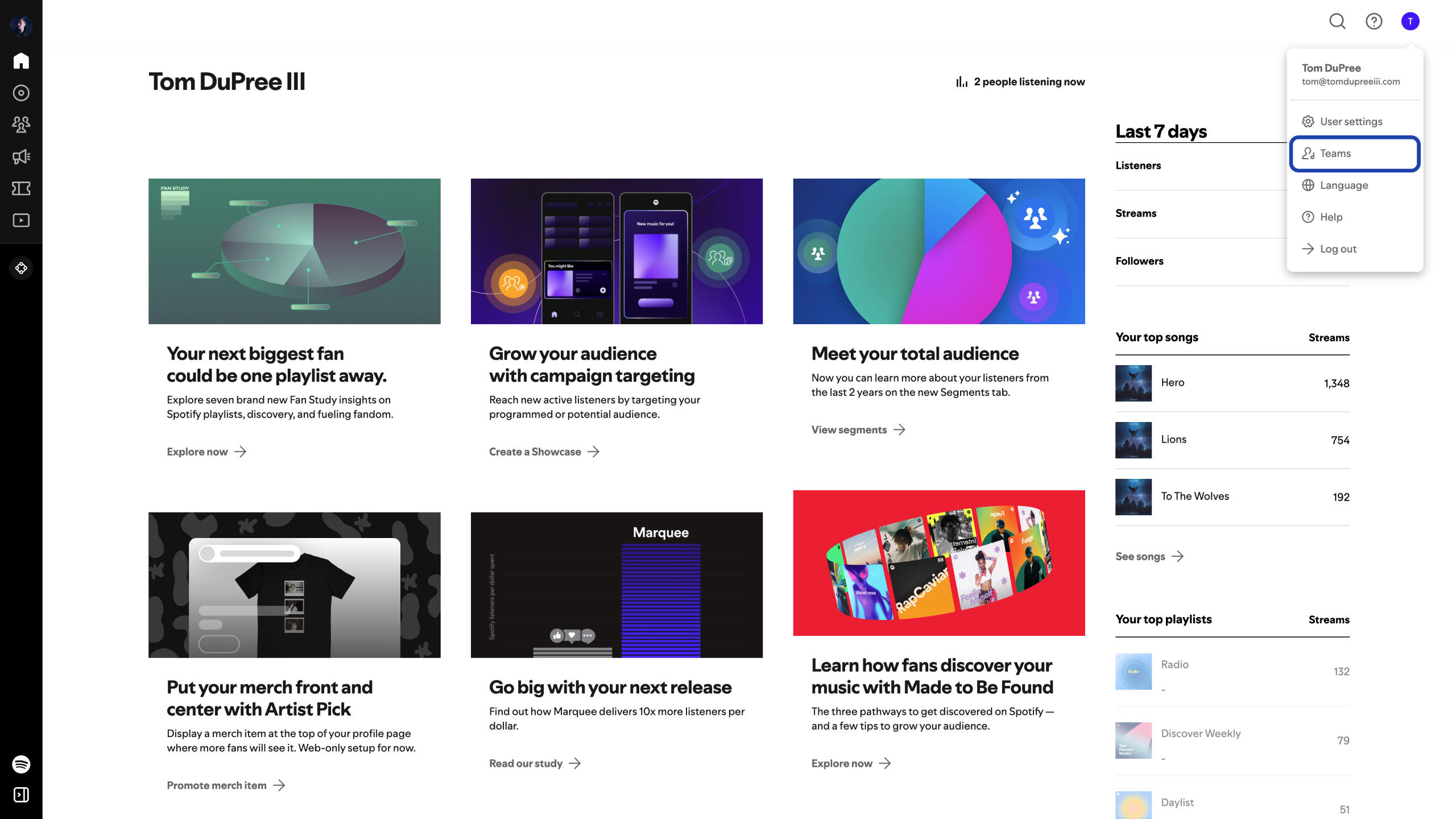
Select Teams from the dropdown menu.
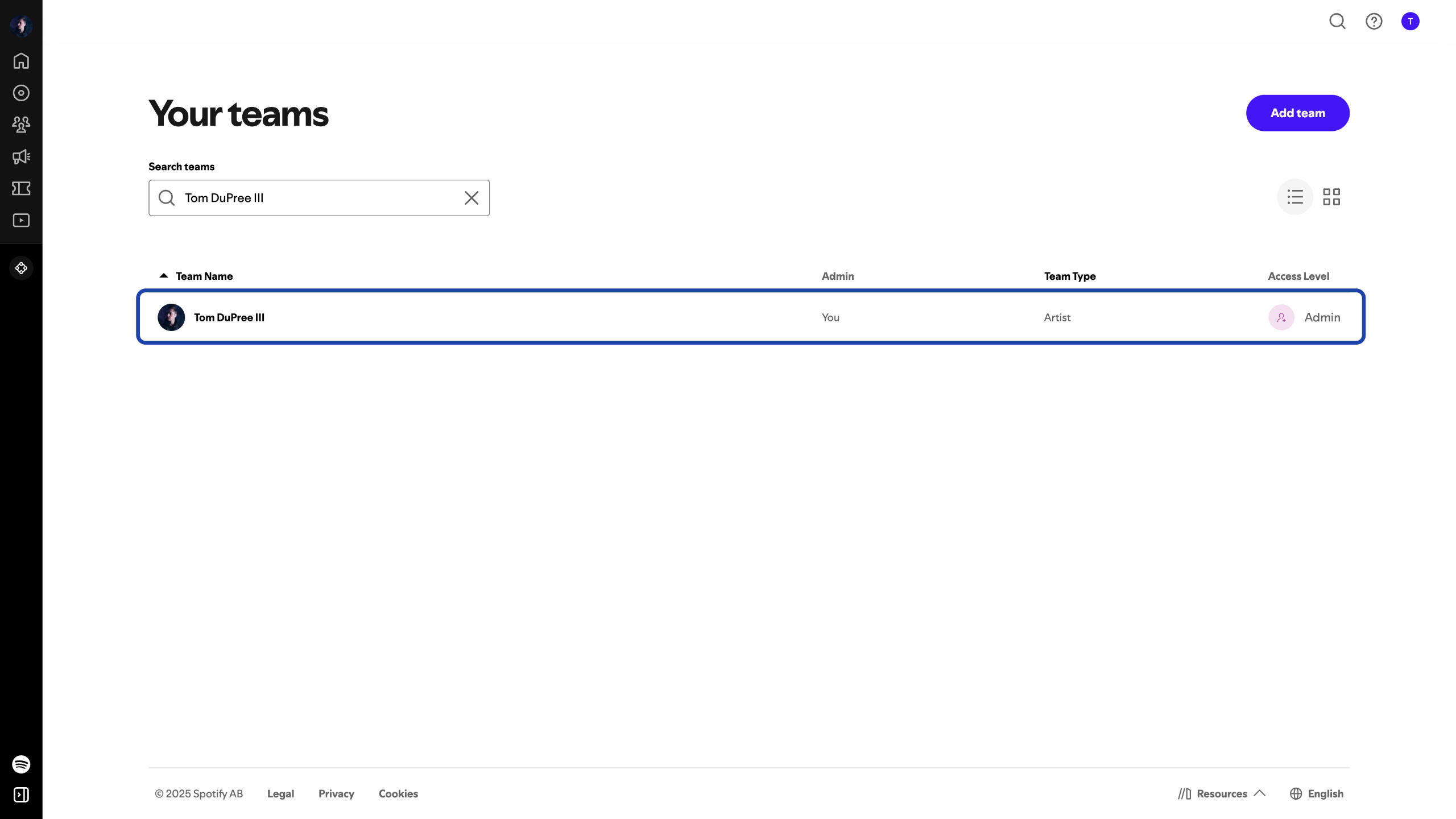
Select your artist team from the list.
Select “Invite” from the top right.
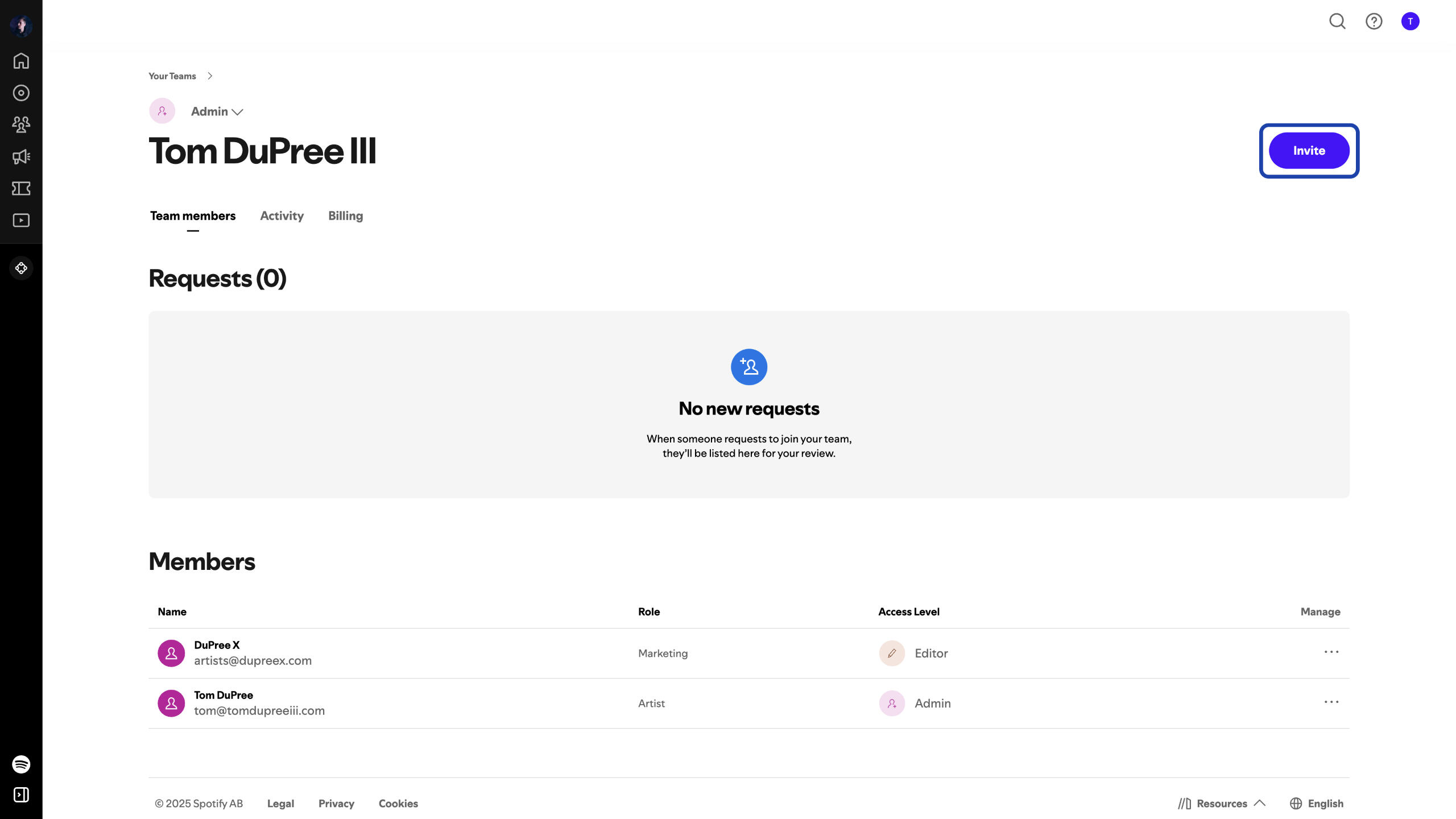
Add us to your team using the following information:
First name: DuPree
Last name: X
Business email: artists@dupreex.com
Role: Other
Specify: Marketing
Company: DuPree X
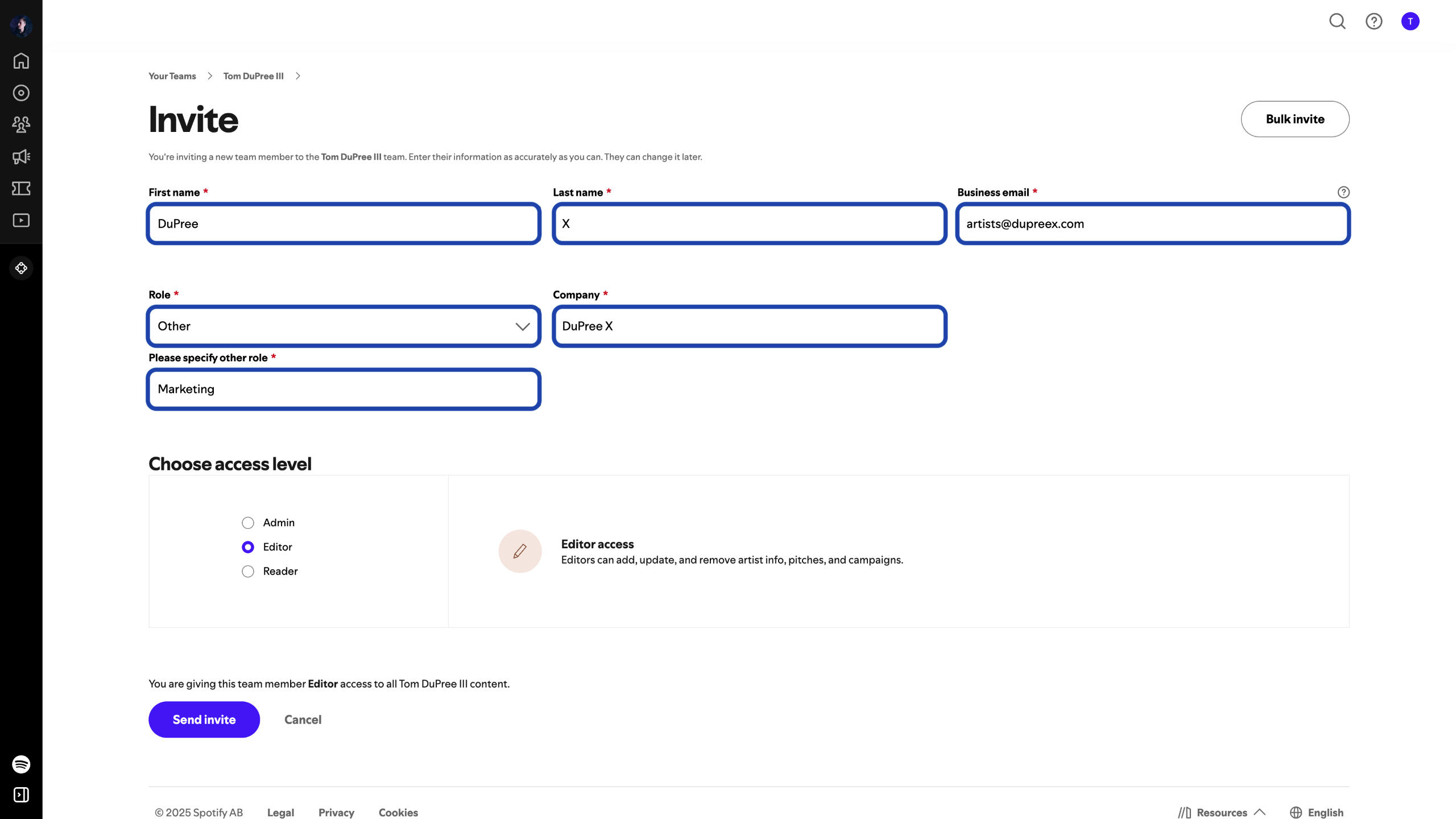
Under “Choose access level”, select “Editor”.
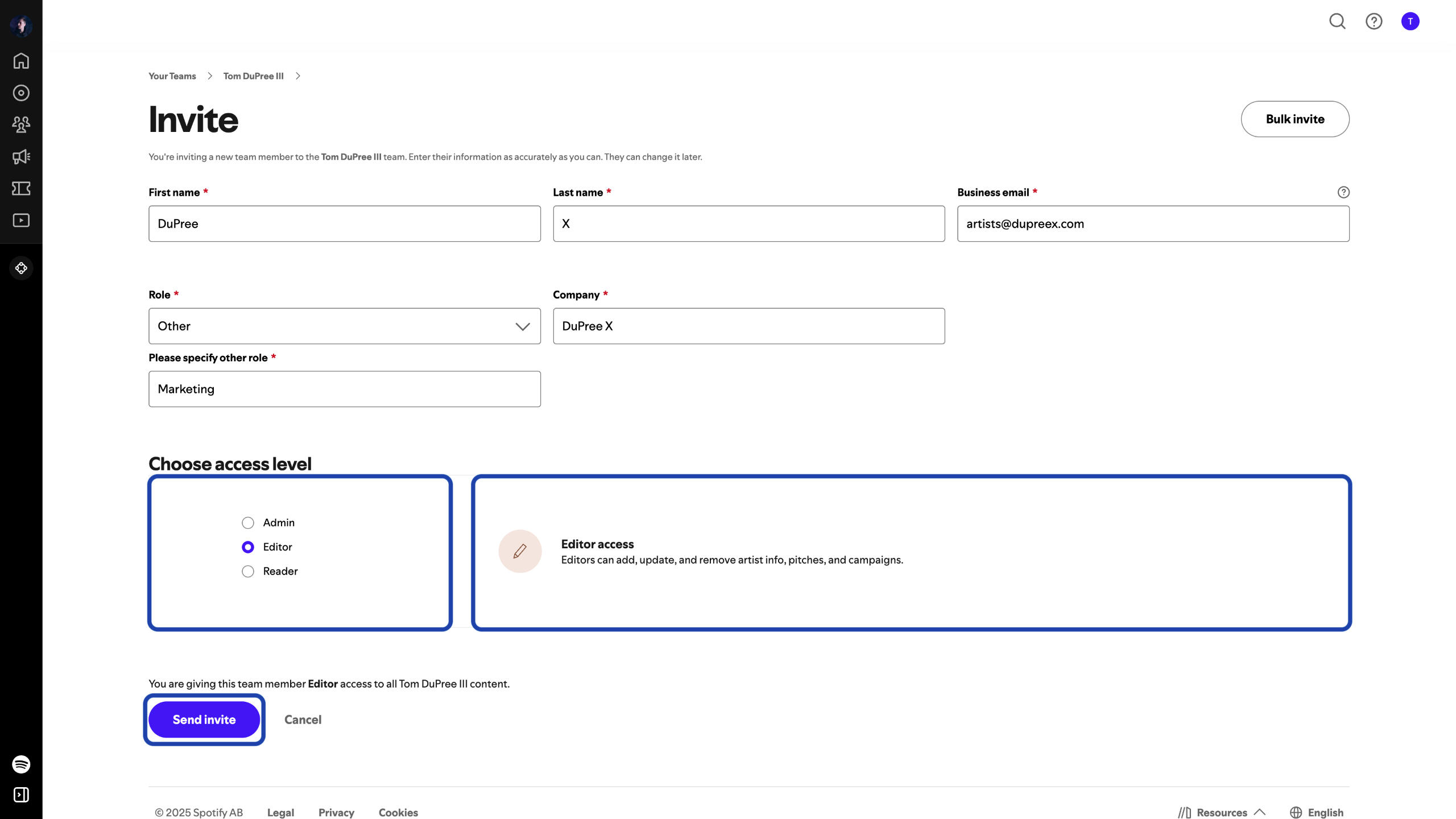
Select “Send invite” to complete the process.
Success!
We will send you an email once we have confirmed access to your accounts.